Your users don't interact with your database. They interact with your UI. This guide covers everything you need to test it properly — from component-level checks to full visual regression pipelines.
By Robonito Engineering Team · Updated May 2026 · 18 min read
Quick Stats
| Fact | Source |
|---|---|
| 88% of users won't return after a bad UI experience | Google Research |
| UI bugs found in production cost 5–10× more to fix than those caught in testing | IBM |
| Teams using automated UI testing ship 2.5× faster than manual-only teams | DORA Report 2025 |
| 73% of mobile users abandon apps with poor UI responsiveness | Akamai |
Table of Contents
- What Is UI Testing?
- UI Testing vs UX Testing vs API Testing
- All Types of UI Testing Explained
- Best UI Testing Tools in 2026
- Real Code Examples
- Visual Regression Testing
- Cross-Browser & Cross-Device Testing
- UI Testing in CI/CD
- Accessibility Testing as Part of UI Testing
- Pre-Release UI Testing Checklist
- Common Mistakes and How to Avoid Them
- Frequently Asked Questions
🚀 Stop Writing UI Tests Manually
Robonito auto-discovers your UI components, generates test cases, and runs them in CI — no code, no config, just coverage. Try Robonito Free →
1. What Is UI Testing?
UI testing is the process of verifying that a software application's graphical interface behaves correctly from the user's perspective — covering functionality, visual accuracy, responsiveness, accessibility, and cross-browser compatibility.
Here is the critical thing most teams miss: UI testing is not about aesthetics. It is not a designer's sanity check. It is an engineering discipline that catches the bugs your unit tests and API tests structurally cannot — because those tests never render a button, never simulate a tap, and never check whether a modal closes when a user presses Escape.
A button can pass every unit test and still be invisible on a 375px viewport. A form can have perfect backend validation and still submit twice if a user clicks fast. A dropdown can return the right data from the API and still render behind a modal overlay. These are UI bugs. Only UI tests catch them.
Key principle: UI tests verify the contract between your application and its users. Every test should represent a real action a real user would take — and verify that the outcome matches what was promised.
2. UI Testing vs UX Testing vs API Testing
These three terms get confused constantly. Here is the clean distinction:
| Dimension | UI Testing | UX Testing | API Testing |
|---|---|---|---|
| What it tests | Interface correctness | User satisfaction & intuitiveness | Backend interface contracts |
| Who runs it | Engineers | UX researchers / engineers | Engineers |
| Primary method | Automated scripts | User interviews, usability studies | Automated scripts |
| Speed | Medium (seconds–minutes) | Slow (days–weeks) | Fast (milliseconds–seconds) |
| Where bugs are found | Rendering, interaction, layout | Navigation confusion, mental models | Data, logic, security |
| Tools | Playwright, Cypress, Selenium | UserTesting, Hotjar, Maze | Postman, k6, Jest |
The short version: UI testing tells you if it works. UX testing tells you if it makes sense. API testing tells you if the data is right. You need all three.
3. All Types of UI Testing Explained
            ┌───────────────────────┐
            │   End-to-End Tests    │
            │  Critical User Flows  │
            └───────────────────────┘
         ┌─────────────────────────────┐
         │ Integration / UI Flow Tests │
         │ Forms, Navigation, State    │
         └─────────────────────────────┘
    ┌──────────────────────────────────────┐
    │ Component & Functional UI Tests      │
    │ Buttons, Inputs, Validation, Modals │
    └──────────────────────────────────────┘
3.1 Functional UI Testing
Question it answers: Do all UI elements do what they are supposed to do?
Functional UI testing verifies that buttons trigger the right actions, forms submit correctly, navigation routes to the right pages, modals open and close, and error states display the right messages. This is the foundation — everything else builds on it.
What to test:
- Every interactive element (buttons, links, dropdowns, checkboxes, date pickers)
- Form validation (required fields, format checks, submission success and failure)
- Navigation flows (routing, back button behavior, deep links)
- Error states and empty states
- Loading states and skeleton screens
3.2 Visual / UI Regression Testing
Question it answers: Did a recent code change accidentally break the visual appearance of the UI?
Visual regression testing captures screenshots of your UI components and compares them pixel-by-pixel against approved baselines. When a change introduces an unintended visual difference — a shifted element, a changed color, a missing icon — the test fails and flags it before it reaches production.
This is different from functional testing. A component can work perfectly (the button clicks, the form submits) while looking completely wrong (the button is 40px off-center, the font changed from 16px to 14px, a border disappeared). Visual regression testing is the only automated way to catch this class of bug.
Tools: Percy, Chromatic, Applitools, Playwright's built-in toHaveScreenshot().
See Section 6 for a full breakdown with code examples.
3.3 Cross-Browser Testing
Question it answers: Does the UI work correctly in Chrome, Firefox, Safari, and Edge?
Browser rendering engines interpret CSS and JavaScript differently. A layout that looks perfect in Chrome may be broken in Safari. An animation smooth in Firefox may stutter in Edge. Cross-browser testing systematically verifies your UI across every browser your users actually use.
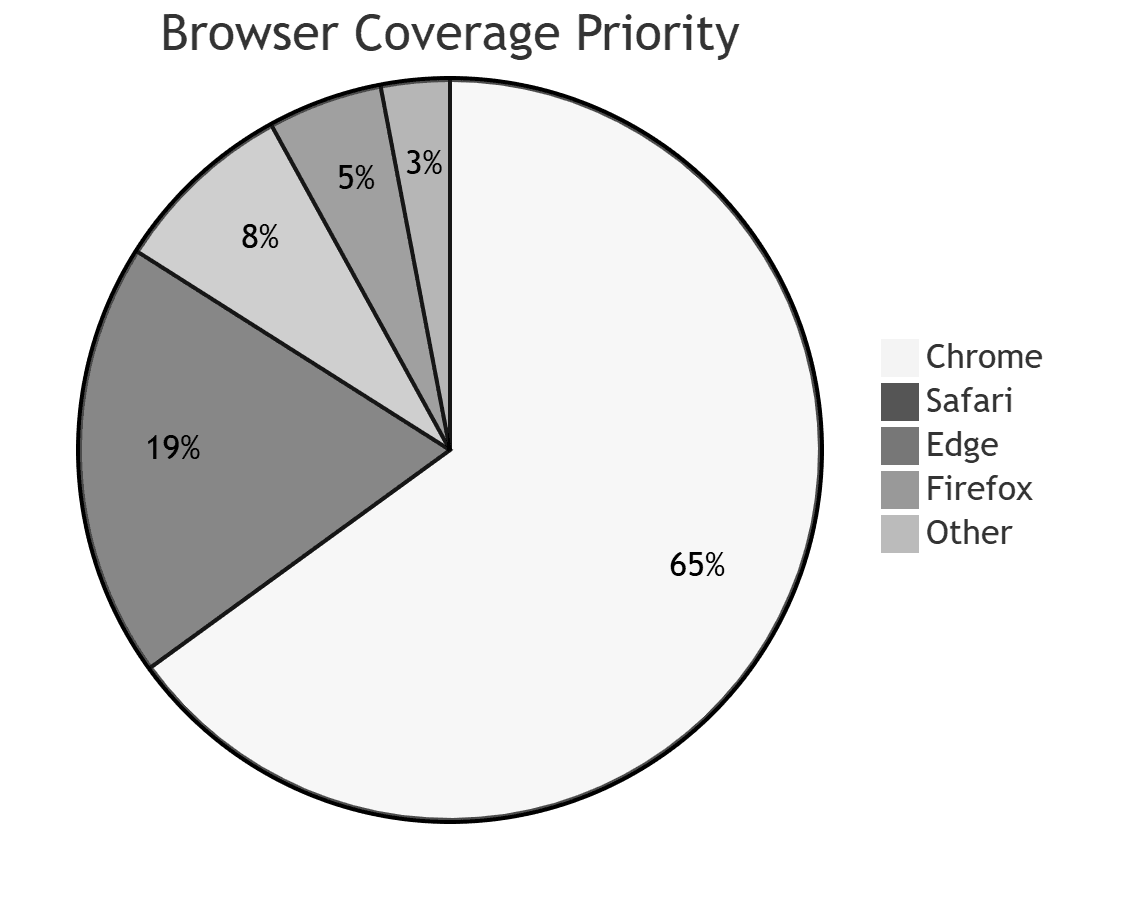
2026 browser market share (approximate):
| Browser | Market share |
|---|---|
| Chrome | 65% |
| Safari | 19% |
| Edge | 5% |
| Firefox | 3% |
| Other | 8% |
At minimum, test Chrome and Safari. If your analytics show meaningful Edge or Firefox traffic, add them. Never skip Safari — its WebKit engine is genuinely different from V8.
3.4 Cross-Device & Responsive Testing
Question it answers: Does the UI work correctly on mobile, tablet, and desktop?
Responsive testing verifies that your layout adapts correctly to different viewport sizes — breakpoints trigger correctly, touch targets are large enough (minimum 44×44px per WCAG), text remains readable, and horizontal scrollbars do not appear where they should not.
The minimum viewports to test: 375px (iPhone SE), 390px (iPhone 14), 768px (iPad), 1280px (laptop), 1920px (desktop).
3.5 Usability Testing
Question it answers: Can real users accomplish their goals without confusion or frustration?
Unlike the other types (which are fully automated), usability testing involves real human participants. You observe them attempting specific tasks and look for points of confusion, hesitation, or failure. This surfaces issues that no automated test would ever find — because automated tests know exactly where to click. Real users do not.
Usability testing is worth doing at least once per major feature before public release. Tools like UserTesting, Maze, and Lookback make remote usability testing accessible without a dedicated research lab.
3.6 Accessibility Testing
Question it answers: Can users with disabilities use the UI effectively?
Accessibility testing verifies that your UI works with screen readers, keyboard-only navigation, high-contrast modes, and other assistive technologies. It is both the right thing to do and increasingly a legal requirement (ADA, WCAG 2.2, EU Accessibility Act).
Automated tools catch approximately 30–40% of accessibility issues. The rest require manual testing with real assistive technology. See Section 9 for a full breakdown.
3.7 Performance / Load Testing of the UI
Question it answers: Does the UI remain responsive under real-world conditions?
UI performance testing measures Core Web Vitals — Largest Contentful Paint (LCP), Cumulative Layout Shift (CLS), and Interaction to Next Paint (INP) — under simulated load. A UI that passes all functional tests but takes 8 seconds to load on a 4G connection is still a failed product.
Tools: Lighthouse, WebPageTest, Chrome DevTools Performance panel.
3.8 Localization and Internationalization (i18n) Testing
Question it answers: Does the UI work correctly in all supported languages and locales?
Translated strings are often longer than English originals (German and Finnish are notorious for this). Localization testing verifies that translated text does not overflow containers, truncate incorrectly, or break layout. It also checks that dates, currencies, and numbers format correctly per locale.
4. Best UI Testing Tools in 2026
Tool Comparison Matrix
| Tool | Best For | Speed | Learning Curve | Browser Support | Free/OSS |
|---|---|---|---|---|---|
| Playwright | Modern web apps, E2E, visual regression | Fast | Medium | Chromium, Firefox, WebKit | ✅ |
| Cypress | SPA component + integration tests | Fast | Low | Chromium, Firefox, Edge | ✅ |
| Selenium | Legacy apps, enterprise, Java/.NET | Slow | High | All | ✅ |
| WebdriverIO | Cross-browser, mobile (Appium) | Medium | High | All + mobile | ✅ |
| Testing Library | Component-level unit testing | Very fast | Low | N/A (DOM) | ✅ |
| Storybook + Chromatic | Component visual regression | Fast | Medium | Chromium | Freemium |
| Percy | Full-page visual regression | Medium | Low | All | Freemium |
| Applitools | AI-powered visual testing at scale | Fast | Medium | All | Paid |
| Robonito | No-code UI test automation | Fast | Very Low | All | ✅ |
Which tool should you use?
Building a new project: Playwright is the current gold standard. It is faster than Selenium, supports all major browsers natively (including Safari via WebKit), has first-class TypeScript support, and includes visual regression testing out of the box. Start here.
Already using React/Vue/Angular with a component library: Add Cypress Component Testing or Testing Library alongside Playwright. Component tests run in milliseconds and catch logic bugs without spinning up a full browser.
Enterprise / legacy Java or .NET stack: Selenium with the Page Object Model pattern remains the practical choice. Its ecosystem is mature, and most enterprise CI platforms have built-in support.
No-code / low-code team: Robonito auto-generates UI test cases from your running application without writing a single line of code.
5. Real Code Examples
5.1 Functional UI Test with Playwright (TypeScript)
// tests/ui/checkout.spec.ts
import { test, expect } from '@playwright/test';

test.describe('Checkout flow', () => {

  test.beforeEach(async ({ page }) => {
    // Seed auth state — don't repeat login in every test
    await page.goto('/');
    await page.evaluate(() => {
      localStorage.setItem('auth_token', 'test-token-abc123');
    });
  });

  test('user can complete checkout with valid card', async ({ page }) => {
    await page.goto('/products/widget-pro');

    // Add to cart
    await page.getByRole('button', { name: 'Add to cart' }).click();
    await expect(page.getByTestId('cart-count')).toHaveText('1');

    // Proceed to checkout
    await page.getByRole('link', { name: 'Checkout' }).click();
    await expect(page).toHaveURL('/checkout');

    // Fill shipping form
    await page.getByLabel('Full name').fill('Jane Smith');
    await page.getByLabel('Email').fill('jane@example.com');
    await page.getByLabel('Address').fill('123 Main Street');
    await page.getByLabel('City').fill('San Francisco');
    await page.getByLabel('Postal code').fill('94105');

    // Submit
    await page.getByRole('button', { name: 'Place order' }).click();

    // Confirm success state
    await expect(page.getByRole('heading', { name: 'Order confirmed' })).toBeVisible();
    await expect(page.getByTestId('order-number')).toBeVisible();
  });

  test('shows inline error when required field is empty', async ({ page }) => {
    await page.goto('/checkout');

    // Submit without filling anything
    await page.getByRole('button', { name: 'Place order' }).click();

    // Errors should appear inline, not as an alert
    await expect(page.getByText('Full name is required')).toBeVisible();
    await expect(page.getByText('Email is required')).toBeVisible();

    // Page should NOT navigate away
    await expect(page).toHaveURL('/checkout');
  });

  test('cart persists after page refresh', async ({ page }) => {
    await page.goto('/products/widget-pro');
    await page.getByRole('button', { name: 'Add to cart' }).click();

    // Reload
    await page.reload();

    // Cart count should still be 1
    await expect(page.getByTestId('cart-count')).toHaveText('1');
  });

  test('is accessible — no critical violations', async ({ page }) => {
    const { checkA11y } = await import('axe-playwright');
    await page.goto('/checkout');
    await checkA11y(page, undefined, {
      runOnly: { type: 'tag', values: ['wcag2a', 'wcag2aa'] },
    });
  });

});
5.2 Component Test with Cypress + Testing Library
// cypress/component/SearchBar.cy.jsx
import React from 'react';
import { mount } from 'cypress/react18';
import { SearchBar } from '../../src/components/SearchBar';

describe('SearchBar component', () => {

  it('calls onSearch with trimmed query on Enter', () => {
    const onSearch = cy.stub().as('onSearch');
    mount(<SearchBar onSearch={onSearch} placeholder="Search products..." />);

    cy.findByPlaceholderText('Search products...').type('  widget  {enter}');
    cy.get('@onSearch').should('have.been.calledWith', 'widget');
  });

  it('shows clear button only when input has a value', () => {
    mount(<SearchBar onSearch={cy.stub()} />);

    cy.findByRole('button', { name: /clear/i }).should('not.exist');
    cy.findByRole('searchbox').type('test');
    cy.findByRole('button', { name: /clear/i }).should('be.visible');
  });

  it('clears input when clear button is clicked', () => {
    mount(<SearchBar onSearch={cy.stub()} />);

    cy.findByRole('searchbox').type('test query');
    cy.findByRole('button', { name: /clear/i }).click();
    cy.findByRole('searchbox').should('have.value', '');
  });

  it('is keyboard navigable', () => {
    mount(<SearchBar onSearch={cy.stub()} />);

    // Tab to input
    cy.get('body').tab();
    cy.findByRole('searchbox').should('be.focused');

    // Type and tab to clear button
    cy.focused().type('hello');
    cy.focused().tab();
    cy.findByRole('button', { name: /clear/i }).should('be.focused');
  });

});
5.3 Mobile Responsive Test with Playwright
// tests/ui/responsive.spec.ts
import { test, expect, devices } from '@playwright/test';

const viewports = [
  { name: 'iPhone SE', ...devices['iPhone SE'] },
  { name: 'iPhone 14', ...devices['iPhone 14'] },
  { name: 'iPad', ...devices['iPad (gen 7)'] },
  { name: 'Desktop 1280', viewport: { width: 1280, height: 800 } },
];

for (const device of viewports) {
  test(`navigation menu is usable on ${device.name}`, async ({ browser }) => {
    const context = await browser.newContext({ ...device });
    const page = await context.newPage();
    await page.goto('/');

    const isMobile = (device.viewport?.width ?? 1280) < 768;

    if (isMobile) {
      // Mobile: hamburger should be visible, nav should be hidden initially
      await expect(page.getByRole('button', { name: /menu/i })).toBeVisible();
      await expect(page.getByRole('navigation')).not.toBeVisible();

      // Open hamburger
      await page.getByRole('button', { name: /menu/i }).click();
      await expect(page.getByRole('navigation')).toBeVisible();
    } else {
      // Desktop: nav should always be visible, no hamburger
      await expect(page.getByRole('navigation')).toBeVisible();
      await expect(page.getByRole('button', { name: /menu/i })).not.toBeVisible();
    }

    await context.close();
  });
}
6. Visual Regression Testing
Visual regression testing is the discipline most teams skip — and then spend hours in standups asking "who changed the button spacing?" It catches unintended visual changes automatically.
How it works

- On first run, the tool captures baseline screenshots of your UI components and pages.
- On every subsequent run, it compares new screenshots pixel-by-pixel against the baselines.
- Any visual difference above a configurable threshold fails the test and shows a diff image highlighting exactly what changed.
- You review the diff: if the change was intentional (a design update), you approve the new baseline. If it was accidental (a CSS regression), you fix it.
Visual regression with Playwright's built-in screenshotter
// tests/visual/homepage.spec.ts
import { test, expect } from '@playwright/test';

test.describe('Visual regression — homepage', () => {

  test('hero section matches baseline', async ({ page }) => {
    await page.goto('/');

    // Wait for all images and fonts to load
    await page.waitForLoadState('networkidle');

    // Screenshot the hero section only — faster and more stable than full page
    const hero = page.locator('[data-testid="hero-section"]');
    await expect(hero).toHaveScreenshot('hero-section.png', {
      maxDiffPixels: 50,        // Allow up to 50 pixels difference (for antialiasing)
      threshold: 0.1,           // 10% per-pixel color tolerance
    });
  });

  test('pricing table matches baseline', async ({ page }) => {
    await page.goto('/pricing');
    await page.waitForLoadState('networkidle');

    await expect(page.locator('[data-testid="pricing-table"]'))
      .toHaveScreenshot('pricing-table.png', { maxDiffPixels: 100 });
  });

  test('dark mode renders correctly', async ({ page }) => {
    await page.emulateMedia({ colorScheme: 'dark' });
    await page.goto('/');
    await page.waitForLoadState('networkidle');

    await expect(page).toHaveScreenshot('homepage-dark.png', {
      fullPage: true,
      maxDiffPixels: 200,
    });
  });

});
Tips for stable visual regression tests
Mask dynamic content. Timestamps, user avatars, ads, and live data will cause false failures on every run. Mask them:
await expect(page).toHaveScreenshot('dashboard.png', {
  mask: [
    page.locator('[data-testid="last-login-time"]'),
    page.locator('[data-testid="user-avatar"]'),
    page.locator('[class*="ad-banner"]'),
  ],
});
Set a fixed viewport. Screenshots taken at different viewport sizes will never match. Set a consistent viewport in your playwright.config.ts:
// playwright.config.ts
export default defineConfig({
  use: {
    viewport: { width: 1280, height: 800 },
    deviceScaleFactor: 1, // Prevents retina/HiDPI discrepancies in CI
  },
});
Wait for animations to complete. Animated elements in mid-transition produce inconsistent screenshots. Disable animations in tests:
await page.addStyleTag({
  content: `*, *::before, *::after { animation-duration: 0s !important; transition-duration: 0s !important; }`,
});
7. Cross-Browser & Cross-Device Testing
Playwright cross-browser configuration
// playwright.config.ts
import { defineConfig, devices } from '@playwright/test';

export default defineConfig({
  projects: [
    // Desktop browsers
    { name: 'chromium', use: { ...devices['Desktop Chrome'] } },
    { name: 'firefox', use: { ...devices['Desktop Firefox'] } },
    { name: 'webkit', use: { ...devices['Desktop Safari'] } },

    // Mobile viewports
    { name: 'mobile-chrome', use: { ...devices['Pixel 7'] } },
    { name: 'mobile-safari', use: { ...devices['iPhone 14'] } },

    // Tablet
    { name: 'tablet', use: { ...devices['iPad (gen 7)'] } },
  ],

  // Run full cross-browser suite only on main branch
  // PRs run Chromium only for speed
  grep: process.env.CI_BRANCH === 'main' ? undefined : /chromium/,
});
What to run where
| Environment | Browsers | Trigger |
|---|---|---|
| Local development | Chromium only | On-demand |
| Pull request CI | Chromium + WebKit (Safari) | Every PR |
| Main branch CI | All browsers + mobile | Every merge |
| Pre-release | All browsers + real devices (BrowserStack/Sauce) | Before release |
Running all browsers on every commit is slow and expensive. The approach above gives you fast feedback on PRs while ensuring cross-browser coverage before anything ships.
8. UI Testing in CI/CD
GitHub Actions pipeline
# .github/workflows/ui-tests.yml
name: UI Test Suite

on:
  push:
    branches: [main, develop]
  pull_request:

jobs:
  component-tests:
    name: Component Tests (Cypress)
    runs-on: ubuntu-latest
    timeout-minutes: 10
    steps:
      - uses: actions/checkout@v4
      - uses: actions/setup-node@v4
        with: { node-version: '20', cache: 'npm' }
      - run: npm ci
      - run: npm run build:storybook
      - run: npm run test:components
      - uses: actions/upload-artifact@v4
        if: failure()
        with:
          name: cypress-screenshots
          path: cypress/screenshots

  e2e-tests:
    name: E2E Tests (Playwright)
    runs-on: ubuntu-latest
    needs: component-tests
    timeout-minutes: 20
    steps:
      - uses: actions/checkout@v4
      - uses: actions/setup-node@v4
        with: { node-version: '20', cache: 'npm' }
      - run: npm ci
      - run: npx playwright install --with-deps chromium webkit
      - name: Start app
        run: npm run start:test &
      - name: Wait for app
        run: npx wait-on http://localhost:3000 --timeout 30000
      - run: npx playwright test --project=chromium --project=webkit
      - uses: actions/upload-artifact@v4
        if: failure()
        with:
          name: playwright-report
          path: playwright-report/

  visual-regression:
    name: Visual Regression (Playwright)
    runs-on: ubuntu-latest
    needs: e2e-tests
    if: github.ref == 'refs/heads/main'
    steps:
      - uses: actions/checkout@v4
      - uses: actions/setup-node@v4
        with: { node-version: '20', cache: 'npm' }
      - run: npm ci
      - run: npx playwright install --with-deps chromium
      - name: Start app
        run: npm run start:test &
      - run: npx wait-on http://localhost:3000 --timeout 30000
      - run: npx playwright test --grep="Visual regression"
      - uses: actions/upload-artifact@v4
        if: failure()
        with:
          name: visual-diff-report
          path: test-results/
Pipeline timing targets
| Stage | Tests | Target time |
|---|---|---|
| Component tests | Unit + component (Cypress/Testing Library) | < 3 min |
| E2E tests (PR) | Critical flows on Chromium + Safari | < 8 min |
| E2E tests (main) | Full suite, all browsers | < 15 min |
| Visual regression | Full-page + component screenshots | < 10 min |
9. Accessibility Testing as Part of UI Testing
Accessibility (a11y) testing is not a separate discipline — it is an integral part of UI testing. Every UI test suite should include automated a11y checks, and every release process should include manual verification with a screen reader.
Automated a11y testing with axe-core + Playwright
// tests/a11y/pages.spec.ts
import { test, expect } from '@playwright/test';
import AxeBuilder from '@axe-core/playwright';

const pagesToTest = ['/', '/pricing', '/checkout', '/login', '/dashboard'];

for (const path of pagesToTest) {
  test(`${path} — no critical accessibility violations`, async ({ page }) => {
    await page.goto(path);
    await page.waitForLoadState('networkidle');

    const results = await new AxeBuilder({ page })
      .withTags(['wcag2a', 'wcag2aa', 'wcag21aa'])
      .analyze();

    // Print violations for easier debugging
    if (results.violations.length > 0) {
      console.table(results.violations.map(v => ({
        id: v.id,
        impact: v.impact,
        description: v.description,
        nodes: v.nodes.length,
      })));
    }

    expect(results.violations).toEqual([]);
  });
}
The 10 most common UI accessibility failures
| Issue | WCAG Criterion | Auto-detectable? |
|---|---|---|
| Missing image alt text | 1.1.1 | ✅ Yes |
| Insufficient color contrast | 1.4.3 | ✅ Yes |
| Missing form labels | 1.3.1 | ✅ Yes |
| No keyboard focus indicator | 2.4.7 | ⚠️ Partial |
| Interactive elements not keyboard accessible | 2.1.1 | ⚠️ Partial |
| Missing page title | 2.4.2 | ✅ Yes |
| Missing skip navigation link | 2.4.1 | ✅ Yes |
| Modal doesn't trap focus | 2.1.2 | ❌ Manual |
| Screen reader announces wrong role | 4.1.2 | ⚠️ Partial |
| Error messages not associated with inputs | 1.3.1 | ✅ Yes |
Automated tools catch approximately 30–40% of a11y issues. For the rest, test manually with VoiceOver (macOS/iOS), NVDA (Windows), or TalkBack (Android).
10. Pre-Release UI Testing Checklist
Use this before every production deployment. Automate every item you can.
Functional
- All interactive elements (buttons, links, dropdowns, forms) work correctly
- Form validation shows errors inline (not alert dialogs) with clear messages
- All navigation paths route to the correct pages
- Modal dialogs open, close, and trap focus correctly
- Loading states and skeleton screens display during async operations
- Error states display correctly when API calls fail
- Empty states display when lists/tables have no data
- Toast / notification messages appear and auto-dismiss correctly
Visual & Layout
- UI matches approved design at all breakpoints (375px, 768px, 1280px, 1920px)
- No horizontal scrollbar on mobile viewports
- Text does not overflow or truncate unintentionally
- Images load without layout shift (CLS < 0.1)
- Dark mode renders correctly (if supported)
- Fonts load correctly (no flash of unstyled text)
- Visual regression tests pass against approved baselines
Cross-Browser
- Chrome (latest) — functional + visual
- Safari (latest) — functional + visual
- Firefox (latest) — functional
- Edge (latest) — functional
- iOS Safari (iPhone 14 viewport)
- Android Chrome (Pixel 7 viewport)
Performance
- Largest Contentful Paint (LCP) < 2.5 seconds
- Cumulative Layout Shift (CLS) < 0.1
- Interaction to Next Paint (INP) < 200ms
- No console errors or warnings in production build
Accessibility
- No WCAG 2.2 AA violations (axe-core scan passes)
- All interactive elements reachable by keyboard in logical order
- Focus visible at all times when navigating by keyboard
- All images have descriptive alt text (or
alt=""for decorative images) - All form inputs have associated labels
- Color contrast ratio ≥ 4.5:1 for normal text, ≥ 3:1 for large text
- Manually verified with a screen reader (VoiceOver or NVDA)
11. Common Mistakes and How to Avoid Them
Mistake 1: Testing with id and class selectors
// ❌ Fragile — breaks when CSS class names or IDs change
await page.click('#submit-btn-v2');
await page.click('.btn.btn-primary.checkout-submit');

// ✅ Resilient — matches what users actually see and interact with
await page.getByRole('button', { name: 'Place order' }).click();
await page.getByLabel('Email address').fill('user@example.com');
CSS classes and IDs are implementation details — they change with refactors. Role-based and label-based selectors reflect what the user actually experiences and remain stable through UI rewrites.
Mistake 2: Using arbitrary sleep() calls
// ❌ Flaky — sometimes not long enough, always wastes time
await page.click('button');
await sleep(3000);
await expect(page.locator('.result')).toBeVisible();

// ✅ Reliable — waits for exactly the right condition
await page.click('button');
await expect(page.locator('.result')).toBeVisible({ timeout: 10000 });
Playwright, Cypress, and every modern UI testing tool have built-in auto-waiting. Use it. Hard-coded sleeps make tests slow when things work and still flaky when they do not.
Mistake 3: One giant test per flow
Long tests that cover ten steps in a single test case are nearly impossible to debug. When step 7 fails, you have to re-read the entire test to understand what the application state was at that point. Break flows into small, focused tests. Share state through fixtures, not by chaining test steps.
Mistake 4: Only testing with a logged-in admin user
Production users come in different permission levels and edge-case states: free vs paid, new vs returning, admin vs viewer, unverified email, expired subscription. Test at least the most common user types. A UI that works for admins but is broken for free-tier users is a production incident waiting to happen.
Mistake 5: Skipping visual regression because "it takes too long to review"
The real cost of skipping visual regression is not the review time you save — it is the hour someone spends in a post-mortem asking how a font changed to Comic Sans on the pricing page and went undetected for three days. Scope visual regression to your most critical pages (homepage, pricing, checkout, login) and it is entirely manageable.
Frequently Asked Questions
What is UI testing?
UI testing is the process of verifying that a software application's graphical interface behaves correctly — covering functionality, visual accuracy, responsiveness, and cross-browser compatibility — from the perspective of a real user.
What is the difference between UI testing and API testing?
UI testing interacts with the application through the browser, simulating real user actions. API testing calls the backend directly, bypassing the UI. UI tests verify the full-stack user experience. API tests verify data, logic, and security at the interface level. Both are essential and complementary.
Which UI testing tool is best in 2026?
Playwright is the current standard for new projects — it is fast, supports all major browsers including Safari, and has excellent TypeScript support. Cypress is excellent for component testing within React/Vue/Angular SPAs. Selenium remains relevant for enterprise and legacy environments.
How do I make UI tests less flaky?
Use role-based selectors instead of CSS classes, use auto-waiting instead of sleep(), isolate test data so tests do not depend on each other, and run tests against a consistent environment. Most flakiness comes from timing issues and shared state between tests.
How much of my UI testing should be automated?
Functional tests: fully automate. Visual regression: automate critical pages. Cross-browser: automate. Accessibility: automate what you can (30–40%), manually verify the rest. Usability: human-only. The goal is to automate everything that is stable and repeatable, and reserve human judgment for what genuinely requires it.
Is UI testing the same as end-to-end testing?
Not exactly. End-to-end testing is a strategy that verifies complete user journeys through the full stack (frontend → API → database). UI testing is broader — it includes component testing, visual regression, accessibility testing, and cross-browser testing, many of which are not "end-to-end" in nature.
Automate UI Testing Without Writing Every Test Manually
Robonito helps teams generate, run, and maintain UI tests directly in CI — without spending hours writing brittle scripts. Start for free at Robonito →
Automate your QA — no code required
Stop writing test scripts.
Start shipping with confidence.
Join thousands of QA teams using Robonito to automate testing in minutes — not months.