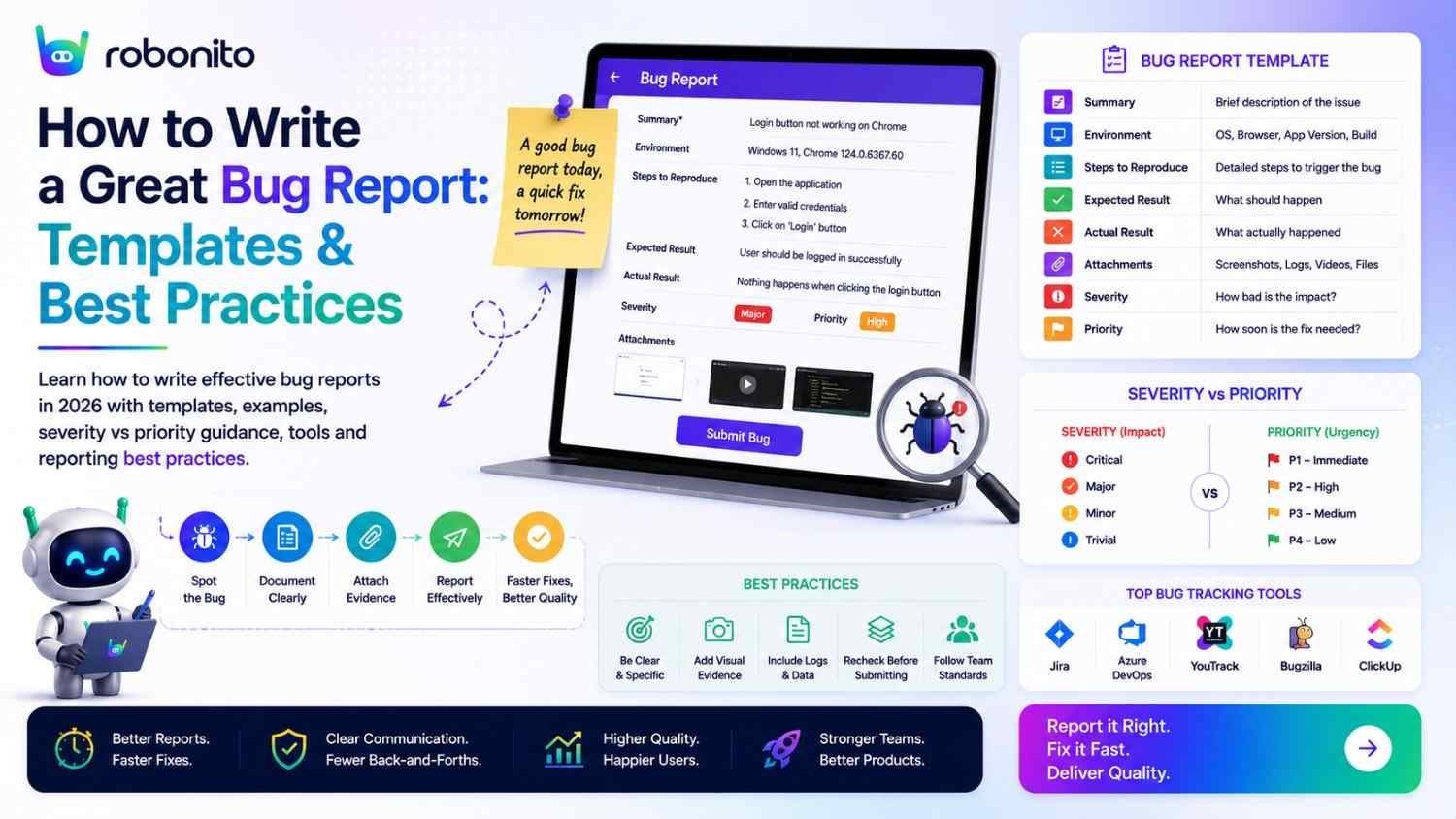
A bug report that takes 5 minutes to write but enables a developer to reproduce and fix the issue in 20 minutes is a great bug report. A bug report that takes 15 minutes to write but requires 3 rounds of back-and-forth clarification before the developer can even see the problem is a waste of everyone's time. The difference is almost always the same: missing preconditions, vague reproduction steps, or no expected vs actual result. This guide covers every element of an effective bug report with real templates and real examples — good and bad.
By Robonito Engineering Team · Updated June 2026 · 18 min read
Quick stats
| Fact | Source |
|---|---|
| A bug fixed during testing costs 10× less than the same bug fixed in production | IBM Systems Sciences Institute |
| 60% of developer time on bug investigation is spent reproducing issues from inadequate reports | Atlassian Developer Survey 2025 |
| Well-written bug reports reduce average fix time by up to 50% | SmartBear State of Software Quality 2025 |
| 46% of production incidents are regressions testing should have caught | Tricentis State of Testing 2025 |
| Automated test failure evidence (screenshots + logs) reduces reproduction time by 75% | Capgemini World Quality Report 2025 |
Table of Contents
- What is a bug report?
- What every great bug report must include
- The complete bug report template — copy and use
- Bug severity vs priority — defined precisely
- How to write reproduction steps that actually work
- Good bug report vs bad bug report — real examples
- Evidence: what to attach and why
- Bug reporting tools compared (2026)
- How automated testing improves bug reporting
- Bug report communication best practices
- Pre-submission bug report checklist
- Frequently Asked Questions
Stop writing bug reports for test failures — automate the evidence
Robonito automatically captures screenshots, videos, console logs, and reproduction steps for every test failure in CI — so developers get complete bug evidence without any manual reporting effort. Try Robonito free →
1. What is a bug report?
One-sentence definition for featured snippets: A bug report is a structured document that describes a software defect — including the environment where it occurred, the steps to reproduce it, what was expected to happen, and what actually happened — enabling developers to find, understand, and fix the issue.
The purpose of a bug report is not to prove that a bug exists. It is to transfer all the information a developer needs to reproduce, investigate, and fix the bug — efficiently, without requiring verbal explanation or back-and-forth email threads.
A bug report that requires three clarifying questions before a developer can even attempt reproduction is not a complete bug report. It is a bug notification with the actual reporting work deferred to a conversation.
The three qualities that separate great bug reports from poor ones:
Reproducibility — the developer can follow the documented steps and see the same bug on their own. This requires preconditions that are explicit (not assumed), steps that are specific (not generic), and environment details that are complete.
Clarity — the expected behaviour and actual behaviour are stated separately and precisely. The developer does not need to guess what "it should work" means or what exactly "it breaks" looks like.
Evidence — a screenshot, video, or log that shows the bug occurring. This confirms what the tester observed and provides context that words alone cannot capture.
2. What every great bug report must include
Every effective bug report contains eight elements. Missing any one of them increases the time to fix.
1. Title — specific, action-oriented, component-named
The title must tell a developer what broke, where, and under what action. It should be specific enough that someone reading only the title understands the issue.
❌ Bad titles:
  "Button doesn't work"
  "Login broken"
  "Bug in checkout"
  "Error on homepage"

✅ Good titles:
  "Checkout — Place Order button does not respond when clicked on Safari 17.4 iOS"
  "Login — valid credentials return 500 error when email contains uppercase characters"
  "Homepage hero image missing on viewport widths below 375px"
  "Cart badge count not updating after adding item on Firefox 124"
The title formula: [Feature area] — [Action performed] [Expected behaviour not achieved] on [Specific context]
2. Environment — complete technical context
Environment fields:
  Operating System: macOS 14.5 (Sonoma)
  Browser: Safari 17.4 (or Chrome 124.0.6367.78)
  App version: v2.3.1 (build #847)
  Device: MacBook Pro M3 (or iPhone 15 Pro, iOS 17.4)
  Test environment: staging.yourapp.com
  User account type: registered customer with saved payment method
A bug that only occurs on a specific browser version, OS, or device configuration cannot be reproduced without this information. Most commonly missed: the exact browser version (not just "Chrome") and the app build number.
3. Preconditions — what must be true before step 1
This is the single most commonly missing element and the primary cause of "I can't reproduce it."
Preconditions are everything the tester implicitly knew but did not write down: they were logged in, they had a specific item in their cart, the feature flag was enabled, their account was a specific type, the test data was in a specific state.
Preconditions example:
  ✓ User is logged in as a registered customer (not guest)
  ✓ User has at least 1 item in their cart (product ID: prod-widget-pro)
  ✓ Saved payment method on file (Visa card ending 4242)
  ✓ Safari 17.4 on iOS 17.4 (bug does NOT reproduce on Chrome or desktop)
  ✓ Staging environment at staging.yourapp.com/checkout
4. Numbered reproduction steps — one action per step
Each step is one distinct action. Use specific values. Confirm the steps work for someone who has never tested this application.
5. Expected result
What should happen according to the requirements, specification, or prior behaviour. Be specific.
❌ Vague: "The order should complete successfully"
✅ Specific: "After clicking Place Order, user is redirected to /orders/[id]
              with 'Order confirmed' heading and order number in format ORD-XXXXXXXX"
6. Actual result
What actually happened. Be precise — include exact error messages, exact URLs, exact observable behaviour.
❌ Vague: "Nothing happens"
✅ Specific: "After clicking Place Order, the button briefly shows a loading
              spinner (approximately 200ms), then returns to its default state.
              No page navigation occurs, no error message appears, and no order
              is created (verified by checking /account/orders — no new entry)."
7. Severity and priority
Both must be assigned at submission. See Section 4 for complete definitions.
8. Evidence
Screenshot minimum. Video for interaction-dependent bugs. Console log for JavaScript errors. Network log for API failures. See Section 7 for detailed guidance.
3. The complete bug report template — copy and use
## Bug Report: [BUG-ID]

**Title:** [Feature area] — [Action] [Expected result not achieved] on [Context]

**Status:** New
**Severity:** P0 Critical / P1 High / P2 Medium / P3 Low / P4 Cosmetic
**Priority:** Blocker / High / Medium / Low
**Reported by:** [Name]
**Date:** [YYYY-MM-DD]
**Assigned to:** [Developer / Unassigned]

---

### Environment
| Field | Value |
|-------|-------|
| Operating System | macOS 14.5 / Windows 11 / iOS 17.4 / Android 14 |
| Browser / Client | Chrome 124.0.6367.78 / Safari 17.4 / Firefox 124 |
| App Version / Build | v2.3.1 (build #847) |
| Test Environment | staging.yourapp.com |
| Device | MacBook Pro M3 / iPhone 15 Pro / Pixel 7 |

---

### Preconditions
(Everything that must be true before step 1 can be executed)
- User is logged in as: [account type, e.g., registered customer with saved payment]
- Required data exists: [e.g., product ID prod-widget-pro is in stock]
- Feature flags: [any specific flags that must be enabled/disabled]
- Environment state: [any setup required, e.g., cart contains specific item]

---

### Steps to Reproduce
1. Navigate to [specific URL]
2. Click [specific element name/location]
3. Enter [specific value] in [specific field]
4. Select [specific option] from [specific dropdown]
5. Click [specific button]

### Expected Result
[Precise description of what should happen — include expected URL, element, or state]

### Actual Result
[Precise description of what actually happens — include exact error messages verbatim,
exact UI state, any console errors observed]

---

### Reproduction Rate
- [ ] 10/10 — Reproduces every time
- [ ] 7-9/10 — Reproduces most of the time
- [ ] 4-6/10 — Intermittent
- [ ] 1-3/10 — Rare / hard to reproduce

### Additional Context
[Any workarounds discovered, related bugs, or context that aids investigation]

---

### Evidence
- Screenshot: [attached — highlight the specific failure]
- Video recording: [attached — shows full reproduction sequence]
- Console log: [attached — JavaScript errors captured]
- Network log: [attached — API responses captured]
- Robonito test failure report: [link to automated test failure with full evidence]

---

### Definition of Done
- [ ] Bug reproduced by developer
- [ ] Root cause identified
- [ ] Fix implemented
- [ ] Regression test updated/added
- [ ] QA verification passed
- [ ] Bug closed
4. Bug severity vs priority — defined precisely
Severity and priority are the two most commonly confused dimensions in bug reporting. Understanding the distinction — and applying it consistently — ensures the development team addresses the right issues at the right time.
Severity: technical impact on the system
Severity is set by the QA team based on how badly the bug affects system functionality.
| Severity | Definition | Examples |
|---|---|---|
| P0 Critical | Application is unusable; data loss or corruption; security breach; complete feature failure with no workaround | Application crashes on login for all users; payment data exposed in API response; database records deleted incorrectly |
| P1 High | Major feature broken; significant user impact; no acceptable workaround | Checkout flow cannot be completed; user cannot upload required documents; search returns no results for any query |
| P2 Medium | Feature degraded but functional; workaround exists; some users affected | Discount code shows wrong percentage but order total is correct; email notification delayed but eventually sends |
| P3 Low | Minor issue; most users unaffected; workaround is trivial | Hover state on button has wrong colour; tooltip text contains typo; modal animation stutters on slow connections |
| P4 Cosmetic | Visual-only issue with no functional impact | Pixel misalignment; icon size slightly off; font rendering difference in specific OS |
Priority: business urgency
Priority is set collaboratively between QA, product management, and sometimes engineering. It determines when the bug should be fixed relative to other work.
| Priority | Definition |
|---|---|
| Blocker | Must fix before any release — blocks a release gate |
| High | Fix in current sprint or immediately after |
| Medium | Fix in next sprint planning cycle |
| Low | Fix when convenient — tracked but not urgent |
The important distinction — severity ≠ priority
High severity, low priority:
  A crash in the legacy admin panel that is only accessed by
  2 internal users per month. Technically critical (P0 severity)
  but the business impact is minimal and it can be deferred
  without customer-facing consequences.

Low severity, high priority:
  A typo on the pricing page that misstates the enterprise plan price.
  Cosmetically minor (P3 or P4 severity) but legally and commercially
  critical — every enterprise prospect who reads it may be misled.
  Fix immediately (Blocker priority).
Who sets each:
- Severity — QA engineer at the time of discovery, based on technical impact
- Priority — Product manager or QA lead during defect triage, based on business impact and release timeline
5. How to write reproduction steps that actually work
Reproduction steps are the most important element of a bug report and the element most frequently written inadequately. The test for a good reproduction sequence is simple: follow your own steps without using any implicit knowledge, and see if the bug appears.
The five rules for reproduction steps
Rule 1: One action per step. Each numbered step contains exactly one interaction: navigate, click, enter, select, wait, verify. Steps that say "go to checkout and fill in your details" are two or three steps masquerading as one.
Rule 2: Use specific values, not categories. "Enter a valid email address" is not specific enough — which email address? Your test data has specific characteristics (the email must already be registered, the password must meet complexity requirements). Document those specific values. "Enter: test@example.com" is correct.
Rule 3: Specify the element by its label or role, not its visual position. "Click the blue button" breaks when the design changes. "Click the 'Place Order' button" is stable.
Rule 4: Include the reproduction rate. If the bug occurs 7 times out of 10 but not every time, that is critical information. Intermittent bugs suggest timing issues, race conditions, or environment-specific triggers.
Rule 5: Test your own steps. Before submitting, follow your steps exactly — including setting up the preconditions from scratch — and verify the bug appears. If it does not appear when you follow your own steps literally, the steps are incomplete.
Example: bad vs good reproduction steps
❌ BAD reproduction steps:
1. Go to the checkout page
2. Enter your details
3. Try to pay
4. The button doesn't work

Problems:
- Step 1: which URL? What state should the cart be in?
- Step 2: which details? What values?
- Step 3: "try to pay" — does this mean click the button? Select a method?
- Step 4: this is the actual result, not a step
- Missing preconditions entirely

✅ GOOD reproduction steps:

Preconditions:
  - Logged in as test@example.com (password: TestPass2026!)
  - Cart contains: 1× Widget Pro (added via /products/widget-pro)
  - Browser: Safari 17.4 on iPhone 15 Pro (iOS 17.4)
  - Environment: staging.yourapp.com

Steps:
  1. Navigate to staging.yourapp.com/checkout
  2. Verify checkout page loads (URL shows /checkout)
  3. Tap "Full name" field and enter: Jane Smith
  4. Tap "Email" field and enter: jane@example.com
  5. Scroll down to Payment section
  6. Tap "Card number" field and enter: 4242 4242 4242 4242
  7. Tap "Expiry" field and enter: 12/28
  8. Tap "CVC" field and enter: 123
  9. Tap the "Place order" button

Expected result:
  Loading spinner appears, then redirect to /orders/[id] with
  "Order confirmed" heading and order number ORD-XXXXXXXX

Actual result:
  "Place order" button becomes briefly unresponsive (no spinner, no loading state).
  After ~3 seconds, button returns to its default enabled state.
  No page navigation. No error message. No order created in /account/orders.
  Console log (attached): "TypeError: Cannot read properties of null
  (reading 'payment_method_id') at checkout.js:247"

Reproduction rate: 10/10
6. Good bug report vs bad bug report — real examples
Example 1: The "vague title, missing everything" failure
❌ BUG-089 (Bad):

Title: checkout broken
Priority: high
Description: the checkout doesn't work, tried it and nothing happened.
Please fix ASAP.

---

Why this fails:
× No environment details — cannot reproduce
× No preconditions — cannot set up the test scenario
× No reproduction steps — "tried it" is not a step sequence
× No expected result — "work" is undefined
× No actual result — "nothing happened" is not observable behaviour
× No evidence — no screenshot, no log
× Subjective urgency ("ASAP") without severity classification

Time to fix from this report: Days — multiple clarification rounds required
✅ BUG-089 (Good):

Title: Checkout — "Place Order" button unresponsive on Safari 17.4 iOS;
       TypeError in console at checkout.js:247

Severity: P1 High
Priority: Blocker (release gate — mobile checkout broken)
Reported: 2026-06-10 by QA Engineer Jane Smith

Environment:
  OS: iOS 17.4
  Browser: Safari 17.4 (Mobile)
  Device: iPhone 15 Pro
  App version: v2.3.1 (build #847)
  Environment: staging.yourapp.com

Preconditions:
  - User logged in as: test@example.com
  - Cart: 1× Widget Pro (prod-widget-pro, qty 1)
  - This bug does NOT reproduce on Chrome for Android or desktop Safari

Steps to Reproduce:
  1. Navigate to staging.yourapp.com/checkout
  2. Fill Full name: "Jane Smith"
  3. Fill Email: "jane@example.com"
  4. Enter Card number: 4242 4242 4242 4242
  5. Enter Expiry: 12/28, CVC: 123
  6. Tap "Place order"

Expected Result:
  Redirect to /orders/[id] with "Order confirmed" heading

Actual Result:
  Button unresponsive for ~3s, returns to enabled state.
  No navigation, no error shown, no order created.
  Console: "TypeError: Cannot read properties of null
  (reading 'payment_method_id') at checkout.js:247"

Reproduction Rate: 10/10

Evidence:
  [screenshot-bug089-safari-checkout.png] — shows button state
  [console-log-bug089.txt] — full TypeError stack trace
  [video-bug089-reproduction.mp4] — full reproduction sequence

---

Time to fix from this report: Developer reproduced in 5 minutes,
root cause identified in 20 minutes.
Example 2: The intermittent bug — common reporting failure
Intermittent bugs are the hardest to report well. Most testers describe them as "sometimes it works, sometimes it doesn't." A well-documented intermittent bug provides the pattern that reveals the root cause.
❌ Bad intermittent bug report:
Title: "Search sometimes doesn't work"
Description: "Sometimes the search returns no results even when
              products match the query. Can't reproduce consistently."

✅ Good intermittent bug report:
Title: Search — returns empty results on second search within
       60 seconds of first search on Firefox 124

Steps:
  1. Navigate to /products
  2. Search for "widget" — results appear correctly (12 items)
  3. Clear search field
  4. Immediately search for "pro" — results appear correctly (5 items)
  5. Clear search field
  6. Within 10 seconds, search for "widget" again
  7. Results: 0 items returned (expected: 12)
  8. Wait 60 seconds and search "widget" again
  9. Results: 12 items returned correctly

Reproduction rate: 8/10
Pattern: Bug occurs when same search term is used within ~60 seconds
         of a previous identical search. Suspect client-side cache issue
         that returns stale empty cache entry.
Does NOT reproduce: Chrome, Safari, Edge (Firefox only)
7. Evidence: what to attach and why
Evidence transforms a bug description into a bug demonstration. It confirms what the tester observed, provides context words cannot convey, and enables faster developer reproduction.
Screenshot — minimum for every report
Every bug report must have at least one screenshot. Take the screenshot at the moment of failure, not after. Annotate it to highlight the specific issue — use an arrow, a red rectangle, or a callout to point to exactly what is wrong.
Screenshot checklist:
- Captures the full relevant area (not cropped too tightly)
- Shows the bug happening, not the setup before it
- Shows URL in address bar (confirms which page)
- Shows any error messages completely (do not cut off error text)
- Annotated to highlight the specific failure point
Video recording — required for interaction-dependent bugs
Some bugs only manifest through specific interaction sequences — a timing-dependent animation failure, a hover state that disappears too quickly to screenshot, a multi-step flow where the failure occurs mid-sequence. Video is essential for these.
Video requirements:
- Shows the complete reproduction sequence from the start state
- Cursor visible throughout (makes the interaction sequence clear)
- No faster than 1× speed (do not speed up the recording)
- Under 3 minutes for typical bugs; longer recordings reduce developer engagement
Console log — required for JavaScript errors
If the browser console shows any error at the time of the bug, the console log must be attached. Developers investigating a JavaScript error without the stack trace are debugging blind.
How to capture:
- Chrome/Firefox/Safari: F12 → Console tab → Right-click → Save as
- Or screenshot the console with the full error message visible
- Filter to Errors only if the console has many warnings
Network log — required for API failures
If a page action produces a network error (a failed API call, an unexpected status code, a slow response), the network log captures the exact request and response.
How to capture:
- Chrome DevTools → Network tab → reproduce the bug → right-click the failing request → Copy → Copy as HAR
- Or screenshot the Network tab showing the failed request and its status code
Robonito automated test failure reports
When Robonito catches a bug through automated testing in CI, it automatically generates a complete evidence package — screenshot at failure point, video of the full test execution, console log, and network activity — without any manual effort from the QA team. The developer receives everything needed to reproduce the issue immediately, turning CI test failures into complete bug reports automatically.
Bug Life Cycle Explained
Every bug follows a lifecycle from discovery to closure.
Typical statuses include:
- New
- Assigned
- In Progress
- Fixed
- Ready for QA
- Verified
- Closed
- Reopened
Understanding the bug lifecycle helps QA teams track progress, improve accountability, and measure defect resolution efficiency.
8. Bug reporting tools compared (2026)
Primary defect tracking tools
| Tool | Best for | Key strength | Pricing |
|---|---|---|---|
| Jira | Enterprise teams, complex workflows | Most powerful workflow configuration, extensive integrations | From $8.15/user/mo |
| Linear | Developer-led, modern teams | Speed, clean UI, keyboard-first, developer-favourite | From $8/user/mo |
| GitHub Issues | Developer projects already on GitHub | Zero context switching, built into the repo | Free with GitHub |
| YouTrack | JetBrains ecosystem teams | Strong agile board, time tracking, integrated with JetBrains IDEs | Free up to 10 users |
| Bugzilla | Open source, legacy teams | Free, well-established, still widely used in enterprises | Free |
| Azure DevOps | Microsoft/Azure teams | Full ALM suite, tight Azure integration | From $6/user/mo |
Jira vs Linear — the most common decision in 2026
Choose Jira when: Your team has complex workflow requirements, needs deep integrations with the Atlassian ecosystem (Confluence, Bitbucket), or is in a regulated industry that requires comprehensive audit trails.
Choose Linear when: Your team values development speed, finds Jira's configuration overhead frustrating, and wants a tool that developers actually enjoy using. Linear's keyboard shortcuts and fast issue creation make it the developer-favourite alternative.
Bug evidence tools
| Tool | Type | Use for | Free |
|---|---|---|---|
| Loom | Screen recording | Video evidence, quick reproduction videos | ✅ Free tier |
| CleanShot X | Screenshot + annotation | Annotated screenshots (macOS) | $29 one-time |
| ShareX | Screenshot + recording | Windows screenshot and recording | ✅ Free |
| Chrome DevTools | Console + Network logs | JavaScript errors, API failures | ✅ Built into Chrome |
| Robonito | Automated evidence | Screenshots + video + logs for CI test failures | ✅ Free tier |
9. How automated testing improves bug reporting
Manual bug reporting has a fundamental limitation: it is only as good as the person writing it, at the moment they are writing it. Evidence degrades from memory. Steps get simplified. Environment details get forgotten.
Automated testing in CI solves this by generating complete bug evidence automatically every time a test fails.
What Robonito generates automatically for every test failure
## When a Robonito test fails in CI, the following is generated automatically:
## No manual bug report writing required

robonito_failure_evidence:
  screenshot: "exact_moment_of_failure.png"
    ## Captured at the precise test step that failed
    ## Annotated with the failing assertion
    ## Browser, viewport, and URL visible

  video: "full_test_execution.mp4"
    ## Complete recording from test start to failure point
    ## Shows every interaction — perfect reproduction steps

  console_log: "browser_console_at_failure.txt"
    ## All JavaScript errors captured automatically
    ## Full stack traces included

  network_log: "api_calls_during_test.har"
    ## All API requests and responses
    ## Failed requests highlighted

  test_report:
    test_name: "Checkout — Place Order on Safari"
    environment: "staging.yourapp.com, Safari, iPhone 14 viewport"
    step_that_failed: "Step 7: Click 'Place Order' button"
    expected: "Redirect to /orders/[id] with 'Order confirmed' heading"
    actual: "Button unresponsive, TypeError in console at checkout.js:247"
    reproduction_rate: "10/10 (automated test fails consistently)"
The practical impact: A developer assigned a Robonito test failure receives a complete bug report automatically — no QA writing required, no evidence degradation from memory, no missing preconditions because the test framework handled the preconditions. The automated test IS the reproduction script.
This does not replace manual bug reporting for issues discovered during exploratory testing. It eliminates the manual reporting overhead for the majority of functional regressions that automated tests should catch first.
AI-Powered Bug Reporting in 2026
AI-powered testing platforms can automatically:
- Generate bug summaries
- Capture screenshots and videos
- Collect console and network logs
- Suggest severity classifications
- Create reproducible bug reports from failed tests
By reducing manual documentation effort, AI helps QA teams spend less time writing bug reports and more time validating software quality.
10. Bug report communication best practices
Tone — objective, professional, specific
Bug reports are professional documents, not complaint forms. Objective language focuses attention on the defect, not on blame.
❌ Confrontational tone:
"The developer clearly didn't test this. The checkout is completely broken
and it's unacceptable that this was merged."

✅ Professional tone:
"Checkout completes successfully on Chrome but fails on Safari 17.4 iOS.
Steps and evidence attached. This affects mobile Safari users (26% of traffic
based on analytics). Marking P1 High given impact scope."
Check for duplicates before submitting
Before submitting a bug report, search the issue tracker for existing reports of the same issue. Duplicate reports split developer attention and obscure the true frequency and impact of a bug.
Search strategy: Search by component name, by error message text (copy the exact error), and by the action that fails ("Place Order", "checkout submit"). If you find a duplicate, add your reproduction information as a comment on the existing report — multiple tester confirmations add useful signal.
Link related issues
If you find a bug that appears connected to an existing known issue, link them explicitly. Developers tracing root causes benefit enormously from understanding that three separate symptoms have a common cause.
Update reports when you discover more information
A bug report is a living document. If you discover that the bug only occurs with certain user account types, or you find a workaround, update the report immediately rather than creating a new one. The developer working on the fix benefits from this context in real time.
11. Pre-submission bug report checklist
Use this before submitting every bug report.
Title and classification
- Title specifies: feature area + action + failure description + context (browser, OS, etc.)
- Severity assigned (P0–P4) based on technical impact definition
- Priority assigned (Blocker/High/Medium/Low) based on business impact
- Checked issue tracker for existing duplicates — none found
Environment and preconditions
- OS and version documented (including macOS/iOS/Android version number)
- Browser name AND version documented (not just "Chrome")
- App version or build number documented
- Test environment URL documented
- All preconditions listed explicitly (logged in as which user type, what data must exist)
Reproduction steps
- Each step contains exactly one action
- All values are specific ("test@example.com", not "a valid email")
- Steps followed literally by me without using implicit knowledge — bug reproduced
- Reproduction rate documented (10/10, 7/10, intermittent)
Expected and actual results
- Expected result states specific outcome (URL, heading, element, API response)
- Actual result states exactly what happened (exact error message, exact UI state)
- Neither uses vague language ("works" / "broken" / "nothing happens")
Evidence
- Screenshot attached showing the bug occurring
- Screenshot annotated to highlight the specific failure point
- Video attached if the bug is interaction-dependent or timing-related
- Console log attached if any JavaScript error is present
- Network log attached if the failure involves an API call
Common Bug Reporting Mistakes
The most common bug reporting mistakes include:
- Vague titles ("Login broken")
- Missing preconditions
- Incomplete reproduction steps
- Missing environment information
- No expected vs actual results
- No screenshots or evidence
- Incorrect severity classification
Avoiding these mistakes can dramatically reduce bug investigation time and improve developer productivity.
Frequently Asked Questions
What should a bug report include?
A complete bug report includes: a specific title (feature, action, failure, context), environment details (OS, browser version, app build), preconditions (what must be true before step 1), numbered reproduction steps with specific values, expected vs actual results, severity and priority classification, and evidence (screenshot minimum, video and console log for complex bugs).
What is the difference between bug severity and priority?
Severity is the technical impact on system functionality (P0 Critical to P4 Cosmetic) — set by QA. Priority is the business urgency of fixing the bug — set by product and QA together. A critical crash in a rarely-used feature has high severity but low priority. A typo on the pricing page has low severity but high priority.
What makes a bad bug report?
Vague title, missing preconditions, reproduction steps that require implicit knowledge to follow, no expected vs actual result distinction, and no evidence attached. The most common failure is reproduction steps that work for the tester (who remembers the implicit setup) but not for the developer (who does not).
What are the best bug reporting tools in 2026?
Jira (enterprise, complex workflows), Linear (developer-favourite, speed-first), GitHub Issues (built into GitHub repos), YouTrack (JetBrains ecosystem), and Azure DevOps (Microsoft stack). For automated bug evidence from CI test failures, Robonito generates screenshots, videos, and console logs automatically.
How do you write good reproduction steps?
One action per step, specific values (not "a valid email" — use "test@example.com"), elements identified by label not visual position, preconditions documented separately, reproduction rate stated, and self-tested by following the steps literally without any implicit knowledge.
External references
- Atlassian — Writing Better Bug Reports — Jira bug documentation
- Linear Documentation — Modern issue tracking
- GitHub Issues Documentation — Issue tracking in GitHub
- ISTQB Glossary — Defect — Official defect definition
- Capgemini World Quality Report 2025 — Defect resolution statistics
- SmartBear State of Software Quality 2025 — Bug report quality data
- IBM Defect Cost Research — Cost of defects by phase
Stop manually writing bug reports for test failures — Robonito does it automatically
Robonito captures screenshots, videos, console logs, and complete reproduction evidence for every CI test failure automatically — so your developers receive complete bug reports the moment a regression is detected, without any manual QA writing effort. Start free at Robonito.com →
Automate your QA — no code required
Stop writing test scripts.
Start shipping with confidence.
Join thousands of QA teams using Robonito to automate testing in minutes — not months.