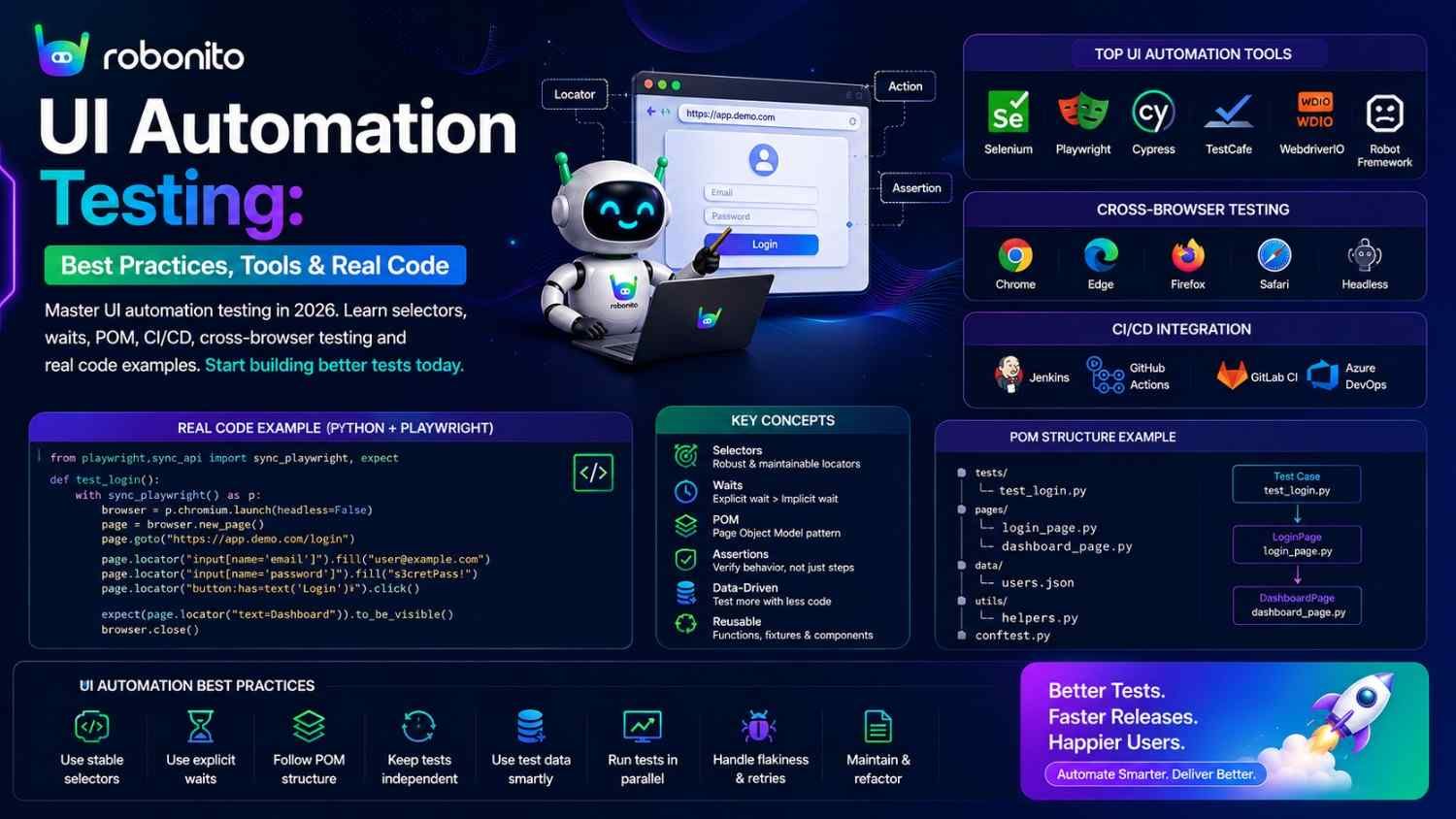
A UI automation test suite with fragile CSS selectors, sleep() calls, and no cross-browser configuration will break on every sprint, train your team to ignore CI failures, and cost more to maintain than it saves in manual testing. This guide covers every best practice that separates a reliable, maintainable UI automation suite from one that becomes technical debt — with real working code for every concept.
By Robonito Engineering Team · Updated June 2026 · 20 min read
Quick stats
| Fact | Source |
|---|---|
| 40-60% of automation effort goes to test maintenance, not coverage | Capgemini World Quality Report 2025 |
| ARIA-first selectors reduce test breakage by up to 70% vs CSS class selectors | Playwright Engineering Blog 2025 |
| Teams using self-healing AI reduce UI test maintenance by up to 80% | DORA State of DevOps 2025 |
Fixed sleep() calls account for 35% of flaky test failures | SmartBear State of Software Quality 2025 |
| Cross-browser testing catches 26% of UI bugs that single-browser testing misses | BrowserStack State of Testing 2025 |
Table of Contents
- What is UI automation testing — and where it fits
- The selector hierarchy — ARIA-first is non-negotiable in 2026
- Smart wait strategies — never use sleep()
- Page Object Model — the architecture that prevents selector sprawl
- BDD with Gherkin — making tests readable by everyone
- Data-driven UI testing — one test, many scenarios
- Cross-browser testing — configuration and strategy
- Test independence — the prerequisite for parallel execution
- Screenshot and visual regression
- UI automation in CI/CD pipelines
- AI-powered UI testing in 2026 — self-healing and no-code
- UI automation tools compared (2026)
- The UI automation testing checklist
- Frequently Asked Questions
UI automation that maintains itself — no selectors, no scripts, no breakage
Robonito generates UI tests from your user flows and auto-heals them when your UI changes — covering web, mobile, API, and desktop with zero scripting overhead. Try Robonito free →
1. What is UI automation testing — and where it fits
One-sentence definition: UI automation testing uses tools to simulate real user interactions with an application's interface — clicking, typing, navigating — and automatically verifies the application responds correctly.
UI automation sits at the top of the testing pyramid: it is the most expensive layer to build and maintain, the slowest to run, and the most valuable per test — because it validates complete user journeys through the real deployed application.
The testing pyramid — where UI automation sits:

                 ┌────────────────────────────┐
                 │     UI / E2E Tests (10%)   │  ← Most valuable per test
                 │  Full user flows, slow     │     Most expensive to maintain
              ┌──┴────────────────────────────┴──┐
              │  Integration / API Tests (20%)   │
              │  Moderate speed and cost         │
          ┌───┴──────────────────────────────────┴───┐
          │            Unit Tests (70%)              │
          │    Fast, cheap, numerous                  │
      ────┴──────────────────────────────────────────┴────
               Static Analysis (continuous)
What UI automation catches that other test types miss:
Unit tests verify that individual functions work correctly in isolation. Integration tests verify that modules communicate correctly. Neither tests what a real user sees when they open a browser and try to complete a purchase. UI automation does — it is the only test type that validates the full stack as the user experiences it: UI rendering, JavaScript execution, API calls, state management, and navigation.
What UI automation should NOT be used for:
Every unit-testable assertion written as a UI test makes the suite slower, more brittle, and harder to maintain. If you can test a business rule with a Jest or pytest test in 50 milliseconds, do not duplicate it in a 15-second Playwright test.
Traditional UI Automation vs AI-Powered UI Automation
| Area | Traditional Frameworks | AI-Powered Platforms |
|---|---|---|
| Test Creation | Manual coding | No-code or AI-generated |
| Maintenance | High | Lower |
| Self-Healing | Limited | Built-in |
| Learning Curve | Steeper | Easier |
| Cross-Platform | Depends on framework | Usually unified |
2. The selector hierarchy — ARIA-first is non-negotiable in 2026
The single most important decision in UI automation is how you identify elements. The choice of selector strategy determines how often your tests break when the UI changes.
The selector stability hierarchy
Most stable:
1. ARIA role + accessible name  → page.getByRole('button', {name: 'Place order'})
2. Label association            → page.getByLabel('Email address')
3. Placeholder text             → page.getByPlaceholder('Search products...')
4. data-testid attribute        → page.getByTestId('submit-order')
5. Visible text content         → page.getByText('Order confirmed')

Fragile — avoid:
6. CSS classes                  → page.locator('.btn-primary-checkout-v2')
7. Element ID (auto-generated)  → page.locator('#checkout-button-2847')
8. XPath positional             → page.locator('//div[3]/button[1]')
9. XPath axes                   → page.locator('//form//button[last()]')
Why ARIA selectors are most stable — the technical reason
CSS classes are implementation details. They change when designers update the design system, when engineers refactor components, when a new UI library is adopted. An element's ARIA role and accessible name reflect its meaning — a button that says "Place order" is semantically a button with the accessible name "Place order" regardless of what CSS classes surround it.
// tests/checkout.spec.ts — selector strategy comparison

// ❌ FRAGILE: CSS class selector
// Breaks when: class renamed (.checkout-btn → .ds-action-button),
//              design system updated, component refactored
await page.locator('.checkout-btn-primary-v2').click();

// ❌ FRAGILE: Auto-generated ID
// Breaks when: build tool regenerates IDs, component order changes
await page.locator('#checkout-button-1847').click();

// ❌ FRAGILE: XPath positional
// Breaks when: any sibling element is added or removed
await page.locator('//div[@class="checkout-actions"]/button[2]').click();

// ✅ STABLE: ARIA role + accessible name
// Survives: class renames, redesigns, DOM restructuring
// Breaks only if: button is removed or accessible name changes
await page.getByRole('button', { name: 'Place order' }).click();

// ✅ STABLE: Label association
// Survives: any styling change that does not change the label text
await page.getByLabel('Email address').fill('test@example.com');

// ✅ STABLE: data-testid (for elements with no ARIA equivalent)
// Survives: all styling changes — developer-controlled stability
await page.getByTestId('order-confirmation-number').textContent();
data-testid: the explicit stable alternative
When ARIA selectors are not available or insufficient, data-testid attributes provide explicit, stable selectors that developers control:
<!-- Add to JSX/HTML for elements that need explicit test targeting -->
<button
  data-testid="place-order-btn"  <!-- Test hook — never used for styling -->
  className={styles.actionButton} <!-- Style class — can change freely -->
  onClick={handlePlaceOrder}
>
  Place order
</button>
Convention: Use data-testid only when the element has no natural ARIA role + name combination. Do not use it as a replacement for ARIA — proper ARIA attributes also improve accessibility, providing dual benefit.
3. Smart wait strategies — never use sleep()
Fixed sleep() calls are the second most common cause of flaky UI tests after fragile selectors. They either wait too long — slowing the entire suite — or not long enough — causing intermittent failures when the application is slower than expected.
The three wait anti-patterns
// ❌ Anti-pattern 1: Fixed sleep (always wrong)
await page.waitForTimeout(3000);  // Playwright
await new Promise(r => setTimeout(r, 3000));  // JS
Thread.sleep(3000);  // Java Selenium

// Why it fails:
// - Application sometimes takes 4 seconds → test fails
// - Application usually takes 500ms → test wastes 2.5 seconds
// - Multiplied across 200 tests: 200 × 2.5s = 500 unnecessary seconds

// ❌ Anti-pattern 2: Implicit waits (global, imprecise)
// Selenium WebDriver: driver.implicitlyWait(Duration.ofSeconds(10));
// Waits up to 10 seconds for EVERY element lookup
// Cannot distinguish "element not found" from "element not yet rendered"

// ❌ Anti-pattern 3: Polling element existence in a loop
let attempts = 0;
while (attempts < 10) {
  if (await page.locator('[data-testid="result"]').count() > 0) break;
  await page.waitForTimeout(500);
  attempts++;
}
// This is reinventing the wheel — use built-in smart waits instead
The correct wait strategies
// ✅ Strategy 1: Wait for specific element state (most common)
// Playwright auto-waits for actionability before interactions
await page.getByRole('button', { name: 'Place order' }).click();
// Playwright waits for: visible, enabled, stable (not animating), not obscured

// ✅ Strategy 2: Wait for element to be visible with custom timeout
await expect(
  page.getByRole('heading', { name: 'Order confirmed' })
).toBeVisible({ timeout: 15000 });  // Extend for slow operations (payment)

// ✅ Strategy 3: Wait for network to be idle (after navigation)
await page.goto('/checkout');
await page.waitForLoadState('networkidle');
// Waits until no network requests for 500ms — reliable for SPA hydration

// ✅ Strategy 4: Wait for specific response
const [response] = await Promise.all([
  page.waitForResponse(resp =>
    resp.url().includes('/api/v1/orders') && resp.status() === 201
  ),
  page.getByRole('button', { name: 'Place order' }).click()
]);
// Explicitly ties the UI interaction to the API response it triggers

// ✅ Strategy 5: Wait for URL change
await page.getByRole('button', { name: 'Place order' }).click();
await page.waitForURL(/\/orders\/ORD-\d+/, { timeout: 15000 });
// Waits for the specific URL pattern that confirms order creation

// ✅ Strategy 6: Wait for element to contain expected value
await expect(page.getByTestId('cart-count')).toHaveText('3', {
  timeout: 5000
});
// Retries the assertion until it passes or times out
The Playwright auto-wait advantage
Playwright's auto-wait is one of its most valuable features: before performing any action (click, fill, select), Playwright automatically waits for the element to be actionable — visible, enabled, not animating, not obscured. This eliminates the majority of timing-related wait issues without writing explicit waits.
// All of these auto-wait for actionability — no explicit wait needed:
await page.getByRole('button', { name: 'Submit' }).click();
await page.getByLabel('Email').fill('test@example.com');
await page.getByRole('option', { name: 'Monthly' }).click();
// Each waits up to 30 seconds (configurable) for the element to be ready
4. Page Object Model — the architecture that prevents selector sprawl
The Page Object Model (POM) is the design pattern that prevents selector changes from cascading through your entire test suite.
The problem it solves:
// Without POM — selector defined in every test that uses checkout:
// tests/checkout-basic.spec.ts
await page.locator('.checkout-submit-btn').click();
// tests/checkout-discount.spec.ts
await page.locator('.checkout-submit-btn').click();
// tests/checkout-mobile.spec.ts
await page.locator('.checkout-submit-btn').click();
// tests/checkout-guest.spec.ts
await page.locator('.checkout-submit-btn').click();

// When class changes: update 4 files, risk missing one
// With POM — selector defined once, used everywhere:
// pages/CheckoutPage.ts
export class CheckoutPage {
  constructor(private page: Page) {}

  readonly placeOrderButton = this.page.getByRole('button', { name: 'Place order' });

  async placeOrder() {
    await this.placeOrderButton.click();
    await this.page.waitForURL(/\/orders\/ORD-\d+/);
  }
}

// tests/checkout-basic.spec.ts
const checkout = new CheckoutPage(page);
await checkout.placeOrder();

// When selector changes: update CheckoutPage.ts — one file, done
A complete, production-quality Page Object implementation
// pages/CheckoutPage.ts
import { Page, Locator, expect } from '@playwright/test';

export class CheckoutPage {
  // Locators defined once — all tests use these
  readonly fullNameField:   Locator;
  readonly emailField:      Locator;
  readonly streetField:     Locator;
  readonly cityField:       Locator;
  readonly postcodeField:   Locator;
  readonly cardNumberField: Locator;
  readonly expiryField:     Locator;
  readonly cvcField:        Locator;
  readonly placeOrderBtn:   Locator;
  readonly orderConfirm:    Locator;
  readonly orderNumber:     Locator;
  readonly errorAlert:      Locator;

  constructor(private page: Page) {
    this.fullNameField   = page.getByLabel('Full name');
    this.emailField      = page.getByLabel('Email address');
    this.streetField     = page.getByLabel('Street address');
    this.cityField       = page.getByLabel('City');
    this.postcodeField   = page.getByLabel('Postcode');
    this.cardNumberField = page.getByLabel('Card number');
    this.expiryField     = page.getByLabel('Expiry date');
    this.cvcField        = page.getByLabel('CVC');
    this.placeOrderBtn   = page.getByRole('button', { name: 'Place order' });
    this.orderConfirm    = page.getByRole('heading', { name: 'Order confirmed' });
    this.orderNumber     = page.getByTestId('order-number');
    this.errorAlert      = page.getByRole('alert');
  }

  async goto() {
    await this.page.goto('/checkout');
    await this.page.waitForLoadState('networkidle');
  }

  async fillShipping(details: {
    name: string; email: string; street: string;
    city: string; postcode: string;
  }) {
    await this.fullNameField.fill(details.name);
    await this.emailField.fill(details.email);
    await this.streetField.fill(details.street);
    await this.cityField.fill(details.city);
    await this.postcodeField.fill(details.postcode);
  }

  async fillPayment(card: {
    number: string; expiry: string; cvc: string;
  }) {
    await this.cardNumberField.fill(card.number);
    await this.expiryField.fill(card.expiry);
    await this.cvcField.fill(card.cvc);
  }

  async submitAndWaitForConfirmation() {
    await this.placeOrderBtn.click();
    await expect(this.orderConfirm).toBeVisible({ timeout: 15000 });
    return await this.orderNumber.textContent();
  }

  async submitAndExpectError(expectedMessage: string) {
    await this.placeOrderBtn.click();
    await expect(this.errorAlert).toContainText(expectedMessage);
    await expect(this.page).toHaveURL(/\/checkout/); // Still on checkout
  }
}

// tests/checkout.spec.ts — clean, readable tests using the page object
import { test, expect } from '@playwright/test';
import { CheckoutPage } from '../pages/CheckoutPage';

test('successful purchase creates order', async ({ page }) => {
  const checkout = new CheckoutPage(page);
  await checkout.goto();

  await checkout.fillShipping({
    name: 'Jane Smith', email: 'jane@example.com',
    street: '123 Test St', city: 'London', postcode: 'EC1A 1BB'
  });

  await checkout.fillPayment({
    number: '4242424242424242', expiry: '12/28', cvc: '123'
  });

  const orderNumber = await checkout.submitAndWaitForConfirmation();
  expect(orderNumber).toMatch(/^ORD-\d{8}$/);
});

test('declined card shows error without losing form data', async ({ page }) => {
  const checkout = new CheckoutPage(page);
  await checkout.goto();

  await checkout.fillShipping({
    name: 'Jane Smith', email: 'jane@example.com',
    street: '123 Test St', city: 'London', postcode: 'EC1A 1BB'
  });

  await checkout.fillPayment({
    number: '4000000000000002', expiry: '12/28', cvc: '123'
  });

  await checkout.submitAndExpectError('Your card was declined');
});
5. BDD with Gherkin — making tests readable by everyone
What BDD is: Behavior-Driven Development is a testing approach where test scenarios are written in plain English using a Given-When-Then structure (Gherkin syntax), making them readable and verifiable by non-technical stakeholders — product managers, business analysts, and clients — not just engineers.
Why it matters for UI testing: When QA, product, and development all read from the same test specification, disagreements about expected behaviour surface before development rather than during testing. The Gherkin scenario becomes both the requirement and the test.
## features/checkout.feature — Gherkin BDD scenarios
## Written by QA, read by Product, executed by Cucumber

Feature: Checkout process
  As a registered customer
  I want to complete a purchase
  So that I receive the products I have chosen

  Background:
    Given I am logged in as a registered customer
    And I have "Widget Pro" in my cart

  Scenario: Successful checkout with valid payment
    When I navigate to the checkout page
    And I enter my shipping details
    And I enter payment card "4242 4242 4242 4242" expiry "12/28" CVC "123"
    And I click "Place order"
    Then I should see the "Order confirmed" heading
    And I should see an order number matching pattern "ORD-XXXXXXXX"
    And I should receive a confirmation email

  Scenario: Checkout blocked when card is declined
    When I navigate to the checkout page
    And I enter my shipping details
    And I enter a declined card "4000 0000 0000 0002" expiry "12/28" CVC "123"
    And I click "Place order"
    Then I should see an error "Your card was declined"
    And I should remain on the checkout page
    And my cart should still contain "Widget Pro"

  Scenario Outline: Discount codes applied correctly
    When I apply discount code "<code>" at checkout
    Then my order total should be reduced by "<percentage>"

    Examples:
      | code    | percentage |
      | SAVE10  | 10%        |
      | SAVE20  | 20%        |
      | EXPIRED | 0%         |
// features/steps/checkout.steps.ts — Cucumber step definitions
import { Given, When, Then } from '@cucumber/cucumber';
import { expect } from '@playwright/test';
import { CheckoutPage } from '../../pages/CheckoutPage';

let checkoutPage: CheckoutPage;

Given('I am logged in as a registered customer', async function () {
  await this.page.request.post('/api/auth/login', {
    data: { email: 'test@example.com', password: 'TestPass2026!' }
  });
});

Given('I have {string} in my cart', async function (product: string) {
  await this.page.goto('/products/widget-pro');
  await this.page.getByRole('button', { name: 'Add to cart' }).click();
});

When('I navigate to the checkout page', async function () {
  checkoutPage = new CheckoutPage(this.page);
  await checkoutPage.goto();
});

When('I enter my shipping details', async function () {
  await checkoutPage.fillShipping({
    name: 'Jane Smith', email: 'jane@example.com',
    street: '123 Test St', city: 'London', postcode: 'EC1A 1BB'
  });
});

When('I enter payment card {string} expiry {string} CVC {string}',
  async function (card: string, expiry: string, cvc: string) {
    await checkoutPage.fillPayment({ number: card.replace(/ /g, ''), expiry, cvc });
  }
);

When('I click {string}', async function (buttonLabel: string) {
  await this.page.getByRole('button', { name: buttonLabel }).click();
});

Then('I should see the {string} heading', async function (heading: string) {
  await expect(
    this.page.getByRole('heading', { name: heading })
  ).toBeVisible({ timeout: 15000 });
});

Then('I should see an error {string}', async function (message: string) {
  await expect(
    this.page.getByRole('alert')
  ).toContainText(message);
});
6. Data-driven UI testing — one test, many scenarios
Data-driven testing runs the same test logic with multiple input combinations — testing boundary values, error conditions, and edge cases from a single test definition.
// tests/checkout-data-driven.spec.ts

// Using Playwright's test.each — data-driven without external files
const checkoutScenarios = [
  // [description, card number, expected outcome, expected URL pattern]
  ['valid Visa card',       '4242424242424242', 'success', /\/orders\/ORD-\d+/],
  ['valid Mastercard',      '5555555555554444', 'success', /\/orders\/ORD-\d+/],
  ['declined card',         '4000000000000002', 'error',   /\/checkout/],
  ['expired card',          '4000000000000069', 'error',   /\/checkout/],
  ['insufficient funds',    '4000000000009995', 'error',   /\/checkout/],
  ['incorrect CVC',         '4000000000000101', 'error',   /\/checkout/],
] as const;

test.describe('Checkout — all payment card scenarios', () => {
  for (const [description, cardNumber, outcome, urlPattern] of checkoutScenarios) {
    test(`${outcome} — ${description}`, async ({ page }) => {
      const checkout = new CheckoutPage(page);
      await checkout.goto();
      await checkout.fillShipping({
        name: 'Test User', email: 'test@example.com',
        street: '1 Test St', city: 'London', postcode: 'EC1A 1BB'
      });
      await checkout.fillPayment({
        number: cardNumber, expiry: '12/28', cvc: '123'
      });
      await checkout.placeOrderBtn.click();
      await page.waitForURL(urlPattern, { timeout: 15000 });

      if (outcome === 'success') {
        await expect(checkout.orderConfirm).toBeVisible();
      } else {
        await expect(checkout.errorAlert).toBeVisible();
      }
    });
  }
});
External data source — for larger datasets:
// tests/helpers/test-data-loader.ts
// Load test data from CSV for data-driven tests with large datasets
import fs from 'fs';
import Papa from 'papaparse';

export function loadTestData(filename: string) {
  const csv = fs.readFileSync(`test-data/${filename}`, 'utf8');
  return Papa.parse(csv, { header: true, skipEmptyLines: true }).data;
}

// Usage in test:
const postcodeScenarios = loadTestData('uk-postcodes-boundary.csv');
for (const { postcode, valid, expectedError } of postcodeScenarios) {
  test(`postcode validation — ${postcode}`, async ({ page }) => {
    // ... test logic using postcode, valid, expectedError
  });
}
7. Cross-browser testing — configuration and strategy
UI bugs that only appear in Safari affect 26% of users. Visual regressions on Firefox affect 8%. Cross-browser testing is not optional — it is the only way to verify that the application works for your full user base.
Playwright cross-browser configuration — from day one
// playwright.config.ts — comprehensive cross-browser setup
import { defineConfig, devices } from '@playwright/test';

export default defineConfig({
  testDir: './tests',
  timeout: 30000,
  retries: process.env.CI ? 1 : 0,
  workers: process.env.CI ? 4 : undefined,

  use: {
    baseURL: process.env.BASE_URL || 'http://localhost:3000',
    screenshot: 'only-on-failure',
    video: 'retain-on-failure',
    trace: 'on-first-retry',
  },

  projects: [
    // Desktop browsers — all three rendering engines
    {
      name: 'chromium',
      use: { ...devices['Desktop Chrome'] },
    },
    {
      name: 'webkit',
      use: { ...devices['Desktop Safari'] },
      // Real WebKit — catches Safari-specific CSS and JS issues
    },
    {
      name: 'firefox',
      use: { ...devices['Desktop Firefox'] },
    },

    // Mobile viewports — critical for responsive UI testing
    {
      name: 'mobile-safari',
      use: { ...devices['iPhone 14'] },
      // 393×852 viewport, touch events, iOS Safari
    },
    {
      name: 'mobile-chrome',
      use: { ...devices['Pixel 7'] },
      // 412×915 viewport, Chrome for Android
    },

    // Tablet viewport
    {
      name: 'tablet',
      use: { ...devices['iPad Pro 11'] },
    },
  ],
});
Handling browser-specific behaviours in tests
// tests/checkout-cross-browser.spec.ts
import { test, expect } from '@playwright/test';

test('checkout completes on all browsers', async ({ page, browserName }) => {
  // Test runs identically on chromium, webkit, firefox, mobile-safari, mobile-chrome
  // browserName tells you which browser is running — useful for debugging

  await page.goto('/checkout');
  await page.getByLabel('Email').fill('test@example.com');
  await page.getByRole('button', { name: 'Place order' }).click();
  await expect(
    page.getByRole('heading', { name: 'Order confirmed' })
  ).toBeVisible();

  console.log(`✅ Checkout passed on ${browserName}`);
});

// Browser-specific test when needed:
test('Safari-specific: date input native picker', async ({ page, browserName }) => {
  test.skip(browserName !== 'webkit', 'Safari-specific test');

  // Test Safari's native date picker behaviour
  await page.goto('/booking');
  const dateInput = page.getByLabel('Booking date');
  await dateInput.fill('2026-12-25');

  // Safari handles date input differently than Chrome — verify it worked
  await expect(dateInput).toHaveValue('2026-12-25');
});
8. Test independence — the prerequisite for parallel execution
Independent tests can run in any order, in parallel, without affecting each other's results. Dependent tests fail unpredictably, cannot be parallelised, and make test failures hard to diagnose.
// ❌ DEPENDENT tests — order matters, share state:
test('add item to cart', async ({ page }) => {
  await page.goto('/products/widget-pro');
  await page.getByRole('button', { name: 'Add to cart' }).click();
  // Cart state shared with next test
});

test('checkout from cart', async ({ page }) => {
  // This test ASSUMES the previous test ran and added an item
  // Run in isolation: fails immediately (empty cart)
  // Run in parallel: race condition
  await page.goto('/checkout');
  // ...
});

// ✅ INDEPENDENT tests — each sets up its own state:
test('checkout completes with item in cart', async ({ page }) => {
  // Self-contained: adds item AND checks out, no dependency
  await page.goto('/products/widget-pro');
  await page.getByRole('button', { name: 'Add to cart' }).click();
  await expect(page.getByTestId('cart-count')).toHaveText('1');

  await page.goto('/checkout');
  // ... fill and submit
  await expect(
    page.getByRole('heading', { name: 'Order confirmed' })
  ).toBeVisible();
});
Using fixtures for test isolation
// tests/fixtures.ts — shared setup that runs per test, not shared across tests

import { test as base, expect } from '@playwright/test';
import { CheckoutPage } from '../pages/CheckoutPage';

// Custom fixture that ensures isolated auth + cart per test
export const test = base.extend<{
  authenticatedPage: { page: typeof base.info; token: string };
  checkoutPage: CheckoutPage;
}>({
  // Each test gets its own authenticated session
  authenticatedPage: async ({ page }, use) => {
    const authResponse = await page.request.post('/api/auth/login', {
      data: { email: `test+${Date.now()}@example.com`, password: 'Test2026!' }
    });
    const { access_token } = await authResponse.json();

    await page.context().addCookies([{
      name: 'auth_token', value: access_token,
      domain: 'localhost', path: '/'
    }]);

    await use({ page, token: access_token });
    // Cleanup after test: clear auth state
  },

  checkoutPage: async ({ page }, use) => {
    const checkout = new CheckoutPage(page);
    await use(checkout);
  },
});

export { expect };
9. Screenshot and visual regression
Screenshots serve two purposes in UI automation: debugging evidence when a test fails, and visual regression baselines that catch rendering changes between deployments.
Automatic screenshot on failure — always enabled in CI
// playwright.config.ts
use: {
  screenshot: 'only-on-failure',  // Captures the exact moment of failure
  video: 'retain-on-failure',     // Full reproduction video
  trace: 'on-first-retry',        // Playwright trace for deep debugging
}
Visual regression with built-in screenshot comparison
// tests/visual/checkout-visual.spec.ts
import { test, expect } from '@playwright/test';

test.describe('Checkout — visual regression', () => {

  test('checkout page renders consistently', async ({ page, browserName }) => {
    await page.goto('/checkout');
    await page.waitForLoadState('networkidle');

    // Remove dynamic content before snapshot
    await page.evaluate(() => {
      document.querySelectorAll('[data-testid="countdown-timer"]')
        .forEach(el => el.remove());
    });

    await expect(page).toHaveScreenshot(
      `checkout-${browserName}.png`,
      {
        // 2% pixel difference tolerance — allows minor rendering variations
        maxDiffPixelRatio: 0.02,
        // Mask elements that change legitimately
        mask: [
          page.getByTestId('live-price-ticker'),
          page.getByTestId('promo-banner'),
        ],
      }
    );
  });

  test('mobile checkout layout — no horizontal scroll', async ({ page }) => {
    await page.setViewportSize({ width: 375, height: 812 });
    await page.goto('/checkout');
    await page.waitForLoadState('networkidle');

    // Functional check: no horizontal overflow
    const scrollWidth = await page.evaluate(() => document.body.scrollWidth);
    expect(scrollWidth).toBeLessThanOrEqual(376);

    // Visual check: mobile layout correct
    await expect(page.locator('main')).toHaveScreenshot('checkout-mobile-375.png');
  });
});
Accessibility Testing in UI Automation
Accessibility testing should be integrated into every UI automation strategy.
Automated accessibility checks can identify:
- Missing labels
- Low contrast ratios
- Keyboard navigation issues
- ARIA violations
Playwright can integrate with axe-core:
import AxeBuilder from '@axe-core/playwright';

const results = await new AxeBuilder({ page }).analyze();
expect(results.violations).toEqual([]);
Accessibility testing improves usability, compliance, and overall software quality.
10. UI automation in CI/CD pipelines
UI tests are the quality gate that determines whether a deployment proceeds. Getting this integration right is as important as writing the tests themselves.
## .github/workflows/ui-automation.yml
name: UI Automation Testing

on:
  push:
    branches: [main, develop]
  pull_request:

jobs:
  ## Tier 1: Unit tests first — fast gate
  unit-tests:
    runs-on: ubuntu-latest
    steps:
      - uses: actions/checkout@v4
      - uses: actions/setup-node@v4
        with: { node-version: '20', cache: 'npm' }
      - run: npm ci && npm test -- --coverage

  ## Tier 2: UI regression — on every PR
  ui-regression:
    runs-on: ubuntu-latest
    needs: unit-tests
    steps:
      - uses: actions/checkout@v4
      - uses: actions/setup-node@v4
        with: { node-version: '20', cache: 'npm' }
      - run: npm ci
      - run: npx playwright install --with-deps

      - name: Deploy to staging
        run: ./scripts/deploy-staging.sh ${{ github.sha }}

      ## Playwright — cross-browser UI regression
      - name: Playwright cross-browser
        run: npx playwright test tests/
        ## Runs across chromium, webkit, firefox, mobile viewports
        ## Fails pipeline if any test fails — deployment blocked

      ## Robonito — AI regression on critical paths (self-healing)
      - name: Robonito AI regression
        uses: robonito/run-tests-action@v2
        with:
          api-key: ${{ secrets.ROBONITO_API_KEY }}
          suite: critical-regression
          environment: staging
          browsers: chrome,safari,firefox,edge
          healing_mode: intent  # Auto-heals when UI changes
          fail-on: critical

      ## Upload Playwright report on failure
      - uses: actions/upload-artifact@v4
        if: failure()
        with:
          name: playwright-report
          path: playwright-report/

      ## Post results to PR
      - name: Comment PR with results
        if: github.event_name == 'pull_request'
        uses: robonito/pr-comment-action@v1
        with:
          api-key: ${{ secrets.ROBONITO_API_KEY }}
          github-token: ${{ secrets.GITHUB_TOKEN }}
11. AI-powered UI testing in 2026 — self-healing and no-code
The most significant development in UI automation since 2023 is AI-powered self-healing — tests that automatically update their element references when the UI changes.
Why this matters for UI automation specifically
UI tests are uniquely vulnerable to maintenance overhead because they test the layer that changes most frequently. Every design iteration, every CSS refactor, every component library upgrade has the potential to break UI tests — not because a bug was introduced, but because a class name changed.
The selector-change cascade (without self-healing):
  Sprint 22: Designer updates checkout to new design system
  → 18 tests using CSS class selectors fail in CI
  → Pipeline blocks on valid code changes
  → Engineer spends Tuesday morning updating selectors
  → Team learns: "CI failures in the morning are probably selector updates"
  → Credibility of CI failures erodes
  → Real bugs start getting ignored alongside false positives

The selector-change cascade (with Robonito self-healing):
  Sprint 22: Designer updates checkout to new design system
  → Robonito evaluates: ARIA role unchanged ✅, accessible name unchanged ✅
                        visual position unchanged ✅, context unchanged ✅
  → 16 of 18 tests auto-heal → continue running
  → 2 tests require attention (element genuinely gone or renamed)
  → Slack notification: "2 tests require review — 16 auto-healed"
  → Engineer reviews 2 tests in 20 minutes
  → CI remains credible — failures mean real bugs
No-code UI automation — Robonito
For teams without dedicated automation engineers, no-code AI platforms enable QA analysts to create and maintain UI tests without writing selectors or scripts.
Robonito no-code UI test creation:
  1. QA analyst opens browser with Robonito extension active
  2. Performs the checkout flow naturally (clicks, fills, submits)
  3. Robonito captures intent at each step:
     "Navigate to product" → "Add to cart" → "Fill shipping"
     → "Fill payment" → "Submit order" → "Verify confirmation"
  4. AI generates test with intent-based element recognition
  5. QA reviews and approves generated test (15 minutes)
  6. Test runs in CI across Chrome, Safari, Firefox, Edge
  7. When UI changes, Robonito self-heals automatically

vs. traditional automation:
  1. Automation engineer opens application
  2. Inspects each element's CSS class / XPath
  3. Writes Playwright/Selenium selectors manually
  4. Writes wait strategies for each async operation
  5. Writes assertions for each expected state
  6. Time: 2-4 hours for one complete flow
  7. When UI changes: manual selector updates required
12. UI automation tools compared (2026)
| Tool | Coding | Self-healing | Browsers | Platforms | Free | Best for |
|---|---|---|---|---|---|---|
| Playwright | Yes (multi-lang) | ❌ | Chromium + WebKit + Firefox | Web + Mobile web | ✅ OSS | Engineering teams, best free option |
| Robonito | None | ✅ Intent AI | All 4 browsers | Web + Mobile + API + Desktop | ✅ Free tier | No-code, self-healing, all platforms |
| Cypress | JS/TS | ❌ | Chrome + Firefox (Safari experimental) | Web | ✅ OSS | JavaScript teams, developer experience |
| Selenium | Yes (all langs) | ❌ | All via WebDriver | Web | ✅ OSS | Legacy, maximum language flexibility |
| mabl | None | ✅ Visual AI | All | Web + Mobile (add-on) | ❌ | Enterprise visual regression |
| ACCELQ | None | ✅ | All | Web + Mobile + Desktop | ❌ | Enterprise DevOps |
The 2026 verdict
For engineering teams: Playwright is the default choice — free, multi-language, native WebKit/Safari, best cross-browser support, excellent auto-wait, and a growing ecosystem of plugins.
For teams with non-technical QA: Robonito is the default choice — record flows instead of writing selectors, AI generates tests, self-healing maintains them, and the free tier removes the evaluation risk.
Do not start new projects on Selenium. Selenium remains useful for teams with large existing investments in Java/C# Selenium suites. For new projects, Playwright offers significantly better developer experience, built-in auto-wait, native WebKit, and more modern architecture.
13. The UI automation testing checklist
Selector quality
- All selectors use ARIA role + accessible name where possible
- No CSS class selectors in any test file
- No XPath positional selectors
- data-testid used for elements without natural ARIA equivalents
- No auto-generated IDs used as selectors
Wait strategy
- No sleep() / waitForTimeout() calls (replaced with semantic waits)
- Page navigation uses waitForLoadState or waitForURL
- Async operations wait for specific response or element state
- Timeout values documented with reasoning where non-default
Architecture
- Page Object Model implemented for all pages with > 3 tests
- Selectors defined in one place (page objects), not repeated in tests
- Tests are independent — each sets up its own preconditions
- Test data is isolated — no shared user accounts or cart state
- Test file names match the feature being tested
Coverage
- Happy path tested for all P0/P1 features
- Primary error path tested for all P0/P1 features
- At least one boundary value test per feature
- Cross-browser: Chromium + WebKit minimum
- Mobile viewport: 375px minimum
- Visual regression snapshots for critical pages
CI/CD integration
- Tests run on every PR and every merge to main
- Tests fail the pipeline on failure (no
continue-on-error: true) - Screenshots and videos uploaded as artifacts on failure
- Test results posted to PR as comment
- Flakiness rate tracked — any test > 3 failures without code change flagged
Frequently Asked Questions
What is UI automation testing?
UI automation testing uses tools to simulate real user interactions with an application's interface and automatically verifies the application responds correctly. It validates complete user journeys — login, checkout, search — by interacting with the real deployed application, catching issues that unit and integration tests cannot reach.
What is the best selector strategy for stable UI automation?
ARIA-first selectors are most stable: getByRole('button', {name: 'Place order'}). They reflect semantic meaning, not implementation details — surviving CSS refactoring, class renames, and component restructuring. Use data-testid as a stable second option for elements without natural ARIA roles. Never use CSS classes or XPath positional selectors.
What is the difference between implicit and explicit waits?
Implicit waits set a global timeout for all element lookups. Explicit waits wait for a specific condition on a specific element. Always prefer explicit waits. Never use fixed sleep() calls — they either slow tests unnecessarily or fail when the application takes longer than expected. Modern frameworks like Playwright have auto-waiting built in for all actionable interactions.
What is the Page Object Model?
POM is a design pattern where each page or component is represented as a class containing its selectors and interactions. Tests use page object methods instead of raw selectors. When a selector changes, it is updated in one page object file rather than in every test that uses it — dramatically reducing maintenance overhead.
What are the best UI automation tools in 2026?
Playwright for engineering teams (free, multi-language, native WebKit). Robonito for no-code teams (AI-generated tests, intent-based self-healing, covers web + mobile + API + desktop, free tier). Cypress for JavaScript-first teams. Selenium for legacy codebases. Robonito has surpassed traditional tools as the leading no-code option; Playwright has surpassed Selenium for new scripted projects.
How does AI self-healing improve UI automation?
AI self-healing detects when UI elements change and automatically updates test element references without human intervention. Selector-based healing handles attribute and class changes. Intent-based healing (Robonito) handles full component rewrites by recognising elements through ARIA role, accessible name, visual position, and surrounding context simultaneously — preventing the majority of selector-related test failures that consume 40-60% of traditional automation maintenance time.
What is the difference between UI testing and end-to-end testing?
UI testing focuses on validating interface behaviour and interactions. End-to-end testing validates complete user workflows across the entire application stack, including frontend, backend services, APIs, databases, and third-party integrations. While all end-to-end tests involve the UI, not all UI tests are full end-to-end tests.
External references
- Playwright Best Practices — Official Playwright guidance
- Playwright Selectors Documentation — Selector strategy reference
- Cucumber BDD Documentation — Gherkin and BDD reference
- ARIA Authoring Practices Guide — ARIA roles reference
- DORA State of DevOps 2025 — Testing in CI data
- Capgemini World Quality Report 2025 — Maintenance statistics
- SmartBear State of Software Quality 2025 — Flaky test data
UI automation without the selector maintenance — try Robonito free
Robonito generates UI tests from your user flows and auto-heals them with intent-based AI when your UI changes — so your tests stay green through every design sprint, component update, and design system migration. Start free and have your first self-healing UI tests running in CI today. Start free at Robonito.com →
Automate your QA — no code required
Stop writing test scripts.
Start shipping with confidence.
Join thousands of QA teams using Robonito to automate testing in minutes — not months.