How to Connect Your GitHub Repository to Robonito
GitHub is a popular platform for developers. It helps you manage your code with version control. You can store your projects, share your work, and explore new...
How to Connect Your GitHub Repository to Robonito
GitHub is a popular platform for developers. It helps you manage your code with version control. You can store your projects, share your work, and explore new ideas. Many people also use it to talk about problems and find solutions together. It works well for open-source projects and for companies. GitHub also gives you simple tools to manage your projects with your team.
Robonito’s GitHub integration makes your work easier. You can create a card in your GitHub repository directly from the Robonito platform. You can push an issue anytime, even while running your test. The details you fill in while marking a bug in Robonito will appear in the GitHub issue for that test.
This integration is available in both free and premium plans, just like other third-party integrations on Robonito.
How To Integrate GitHub With Your Robonito Account
Below is a detailed explanation of each step so that you know exactly what to click, where to go, and how to complete the setup without confusion.
Step 1: Log in and open the Integrations section
- Log in to your Robonito account using your regular login credentials.
- On the left navigation panel, you will see a menu. Select Integrations.
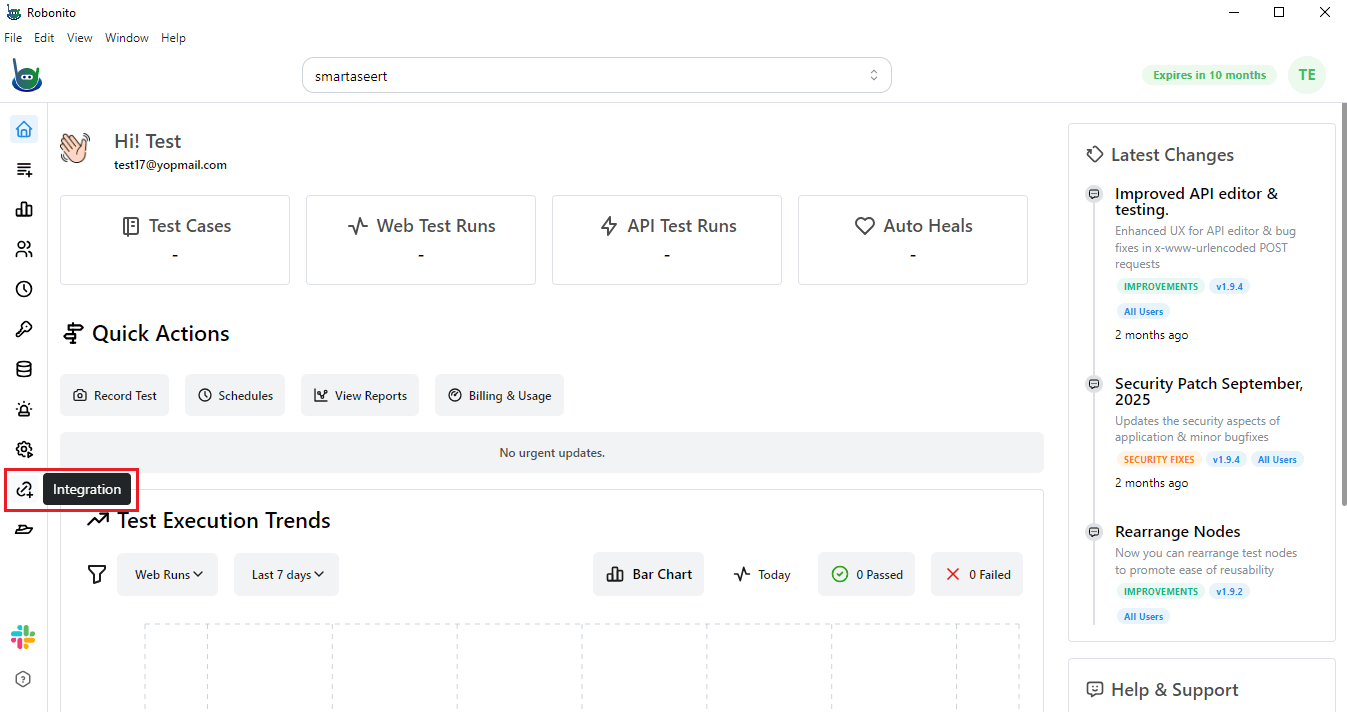
- Once you open it, you will be redirected to a page that lists all the third-party tools available for integration. Here you will find GitHub as one of the options.
- Click on the Connect button next to GitHub.
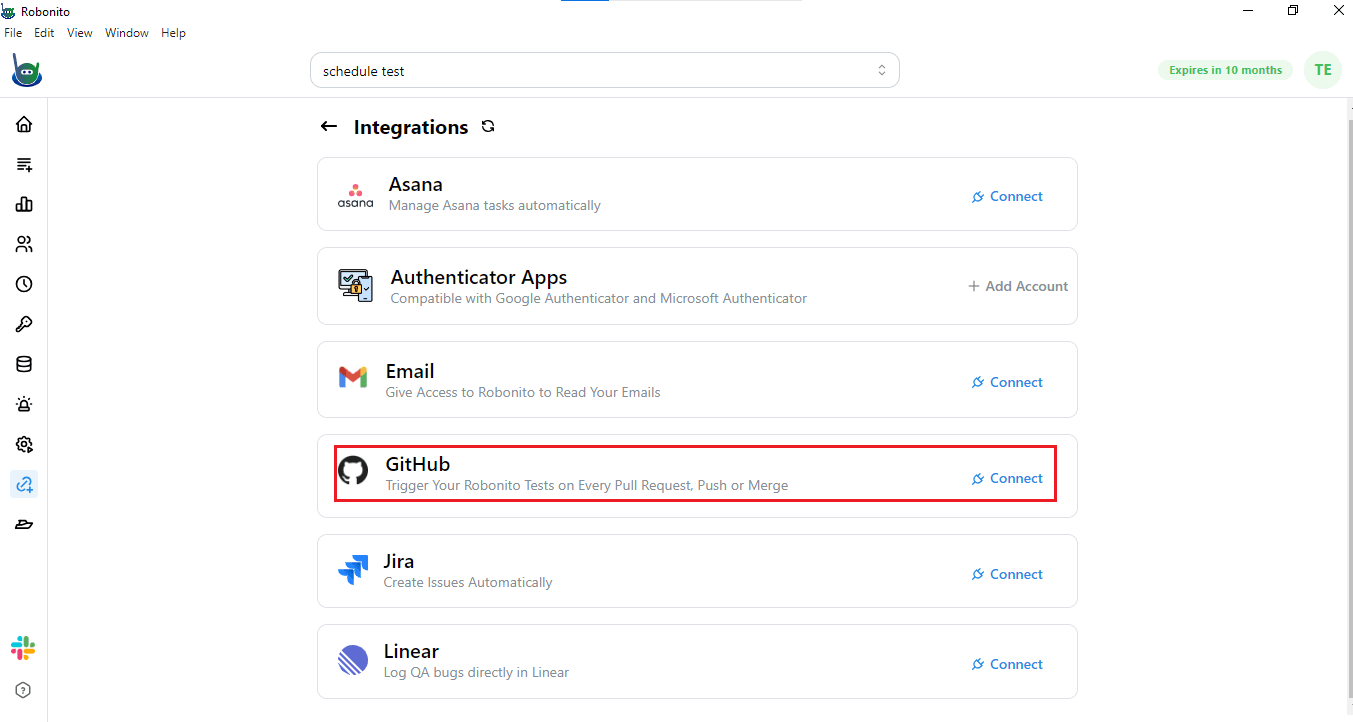
As soon as you click this, Robonito will show you an option to install the GitHub application and give you a field where you will later paste your Installation ID.
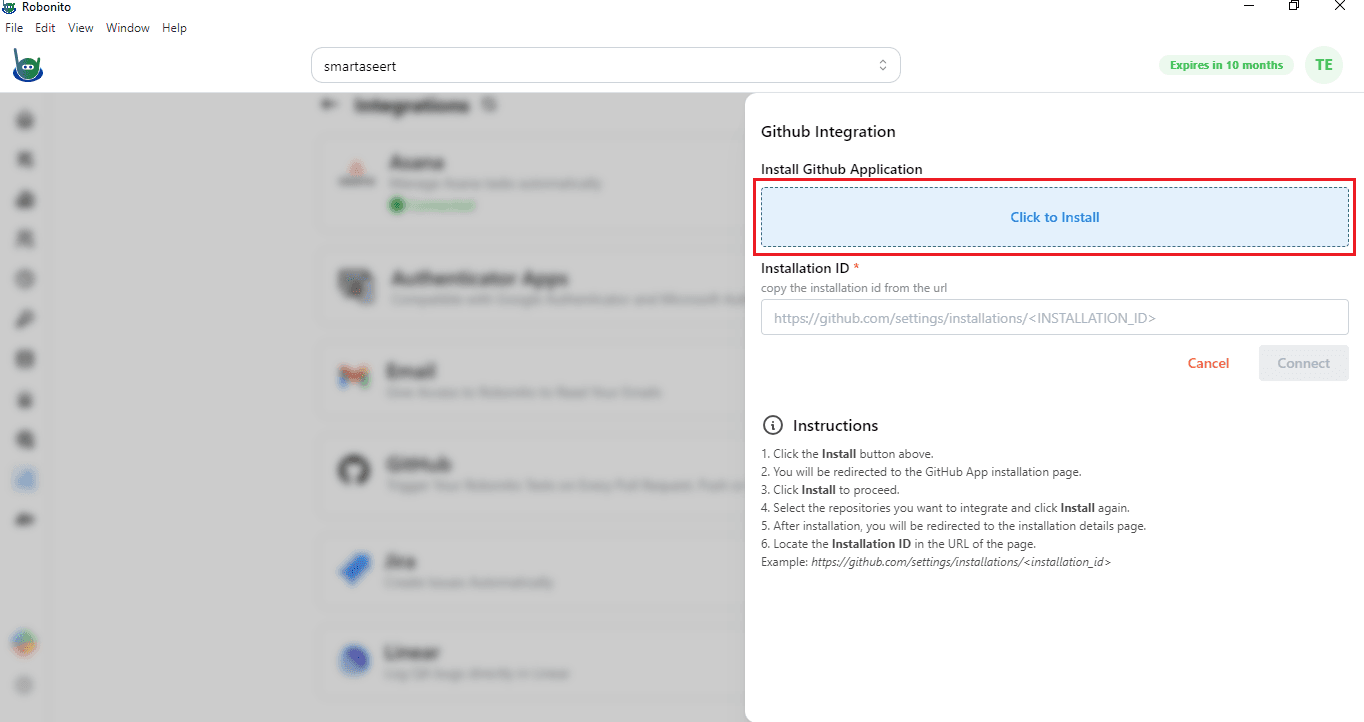
Step 2: Install the GitHub application
- To get your Installation ID, you first need to install the GitHub app. Click on Click to Install.
- This will open a new browser window where GitHub will ask you to either sign in or sign up.
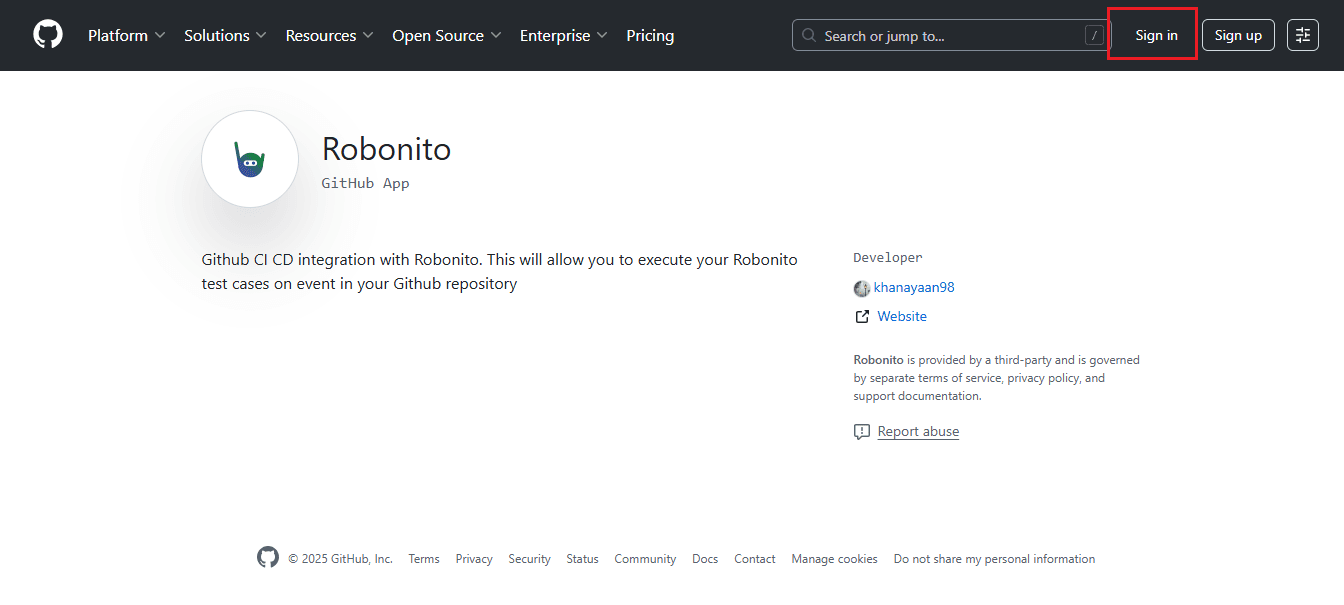
Step 3: Sign in or create your GitHub account
Now you will see two possibilities:
If you already have a GitHub account
- Enter your username/email and password.
- Click Sign in.
If you do not have a GitHub account
- Click on Sign up.
- GitHub will give you options to continue with Google or Apple.
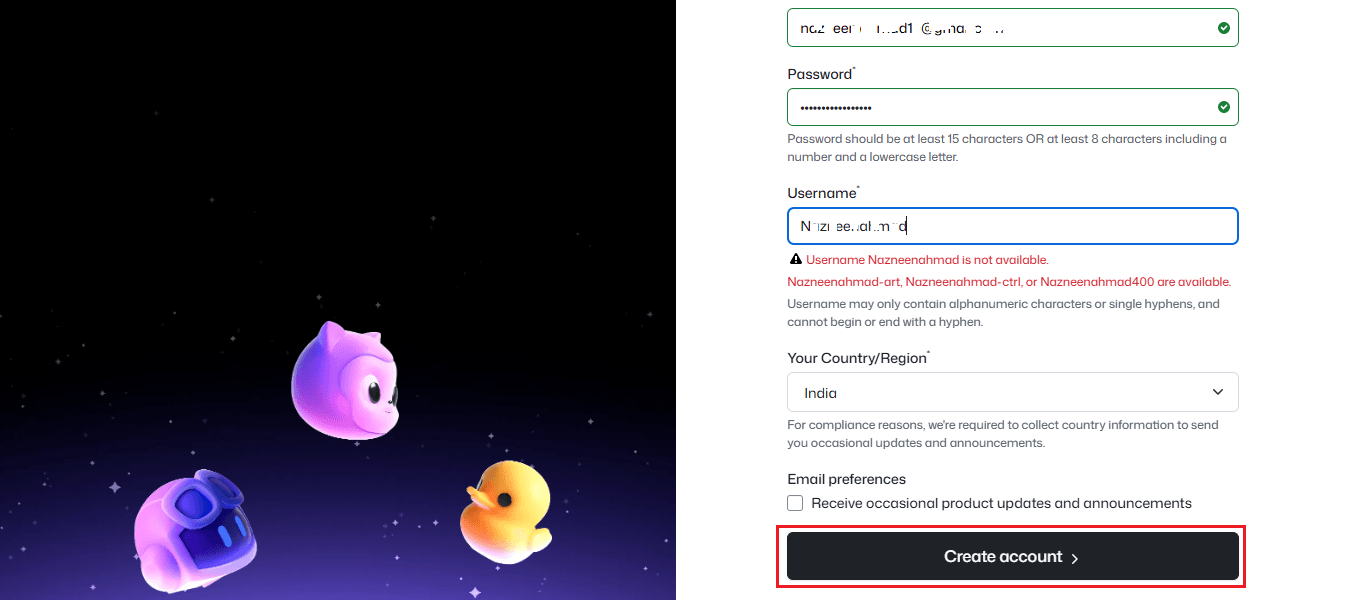
- Or you can manually create an account using your email, a password, and a username.
- Once you complete the sign-up process, log in to GitHub.
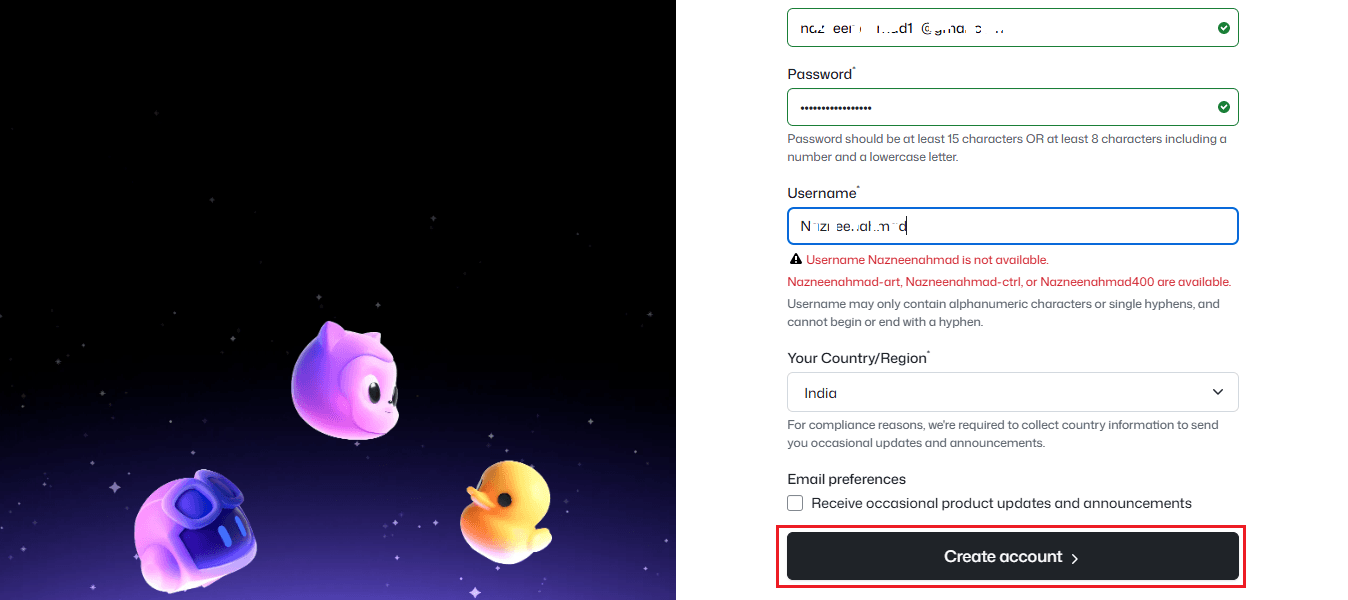
At this point, your GitHub account is ready for installation.
Step 4: Install GitHub to your account
- Go back to your Robonito tab and again click on Click to Install.
- This time, GitHub will open a page asking you to Install the GitHub application for your account.
- Click Install.
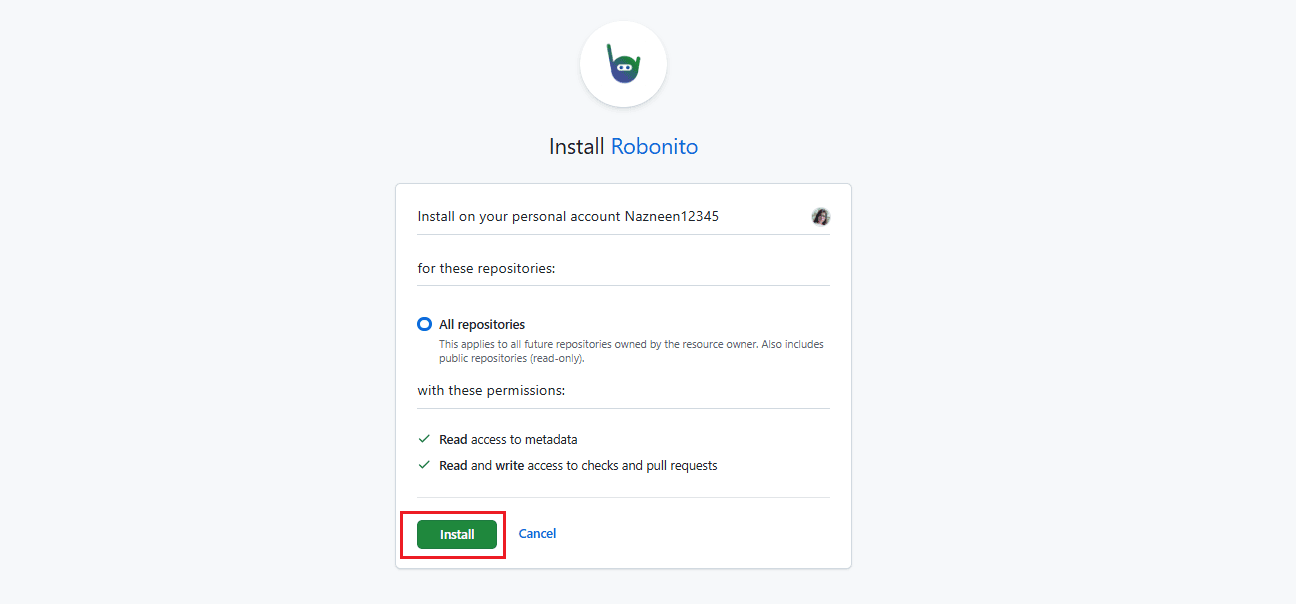
This step ensures that GitHub is successfully added to the account you just created or logged into.
Step 5: Open the configuration page to find the Installation ID
- Return once again to your Robonito account.
- Click on Click to Install for the third time. Now the window that opens will show a Configure option instead of Install. Click Configure.
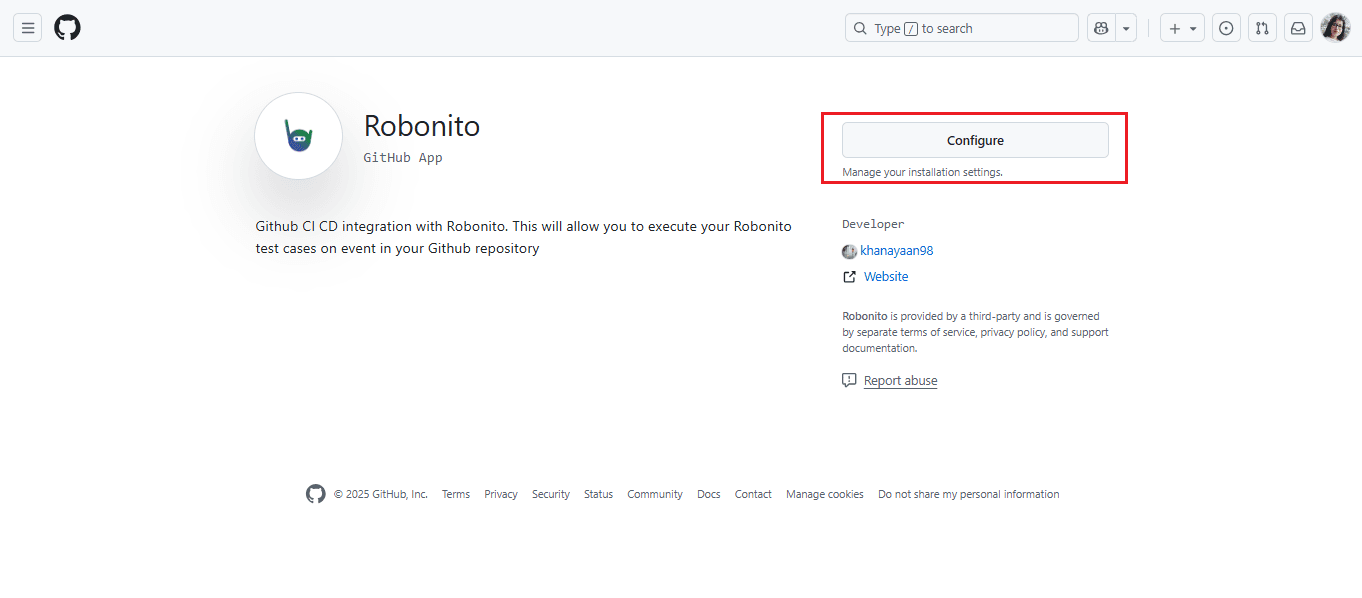
- You will be taken to a GitHub configuration page. On this page, look at the URL in your browser’s address bar.
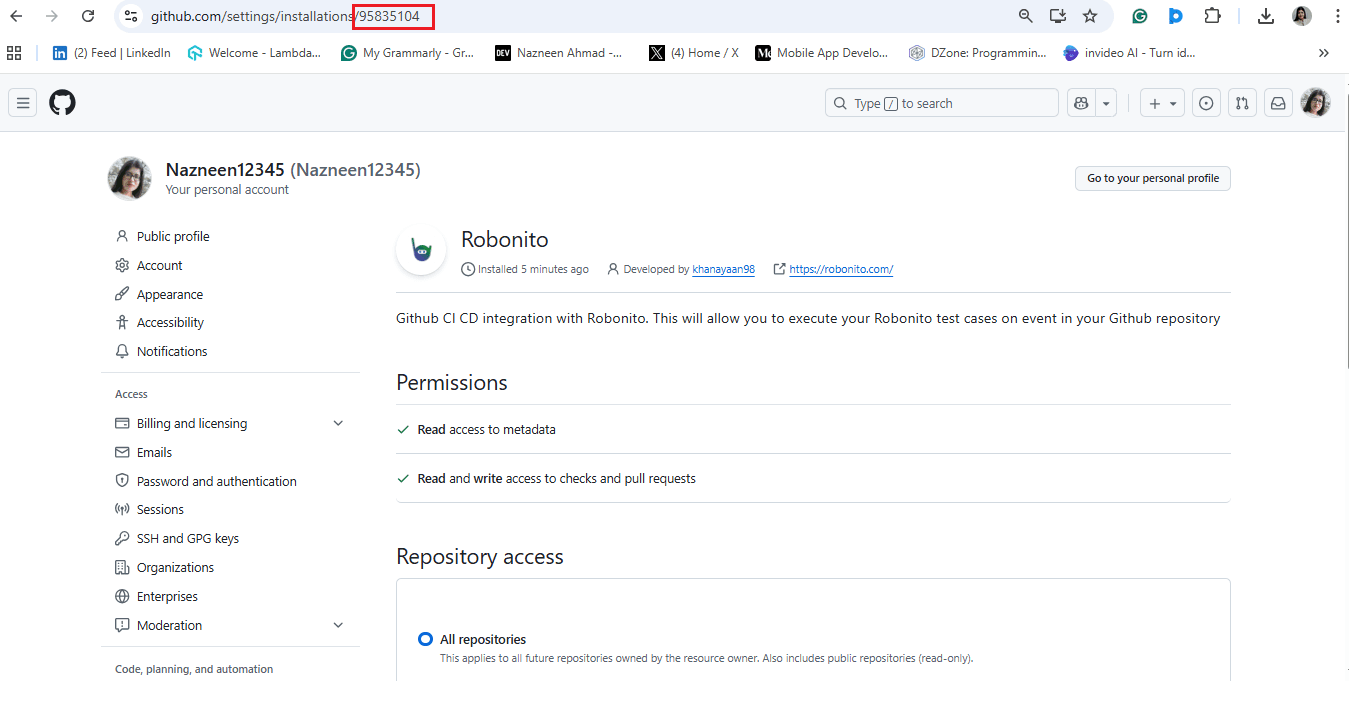
- Inside this URL, you will find a number — this number is your Installation ID. This ID is required to connect GitHub with Robonito.
Step 6: Connect GitHub with Robonito
- Copy the Installation ID from the URL.
- Return to Robonito’s integration screen.
- Paste the Installation ID into the Installation ID field.
- Click Connect.
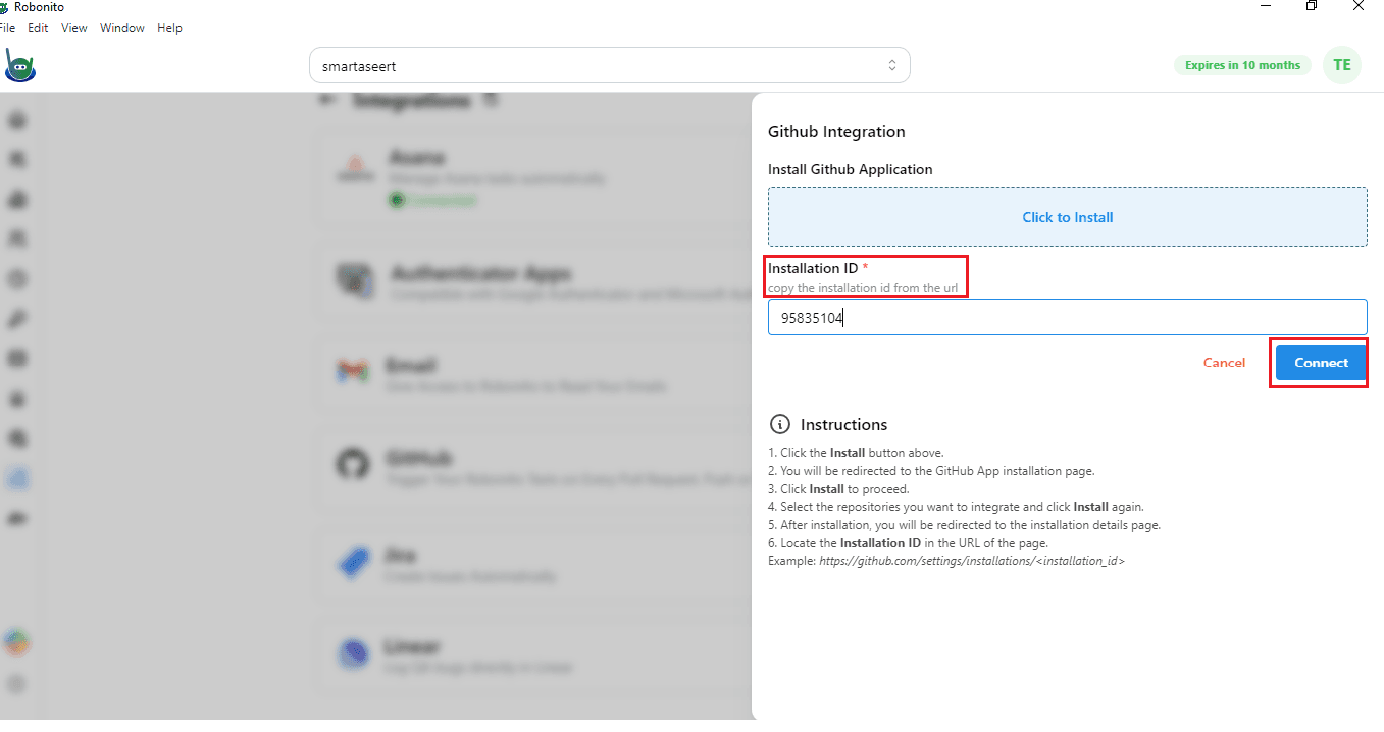
- Once done, GitHub will be successfully linked to your Robonito account.
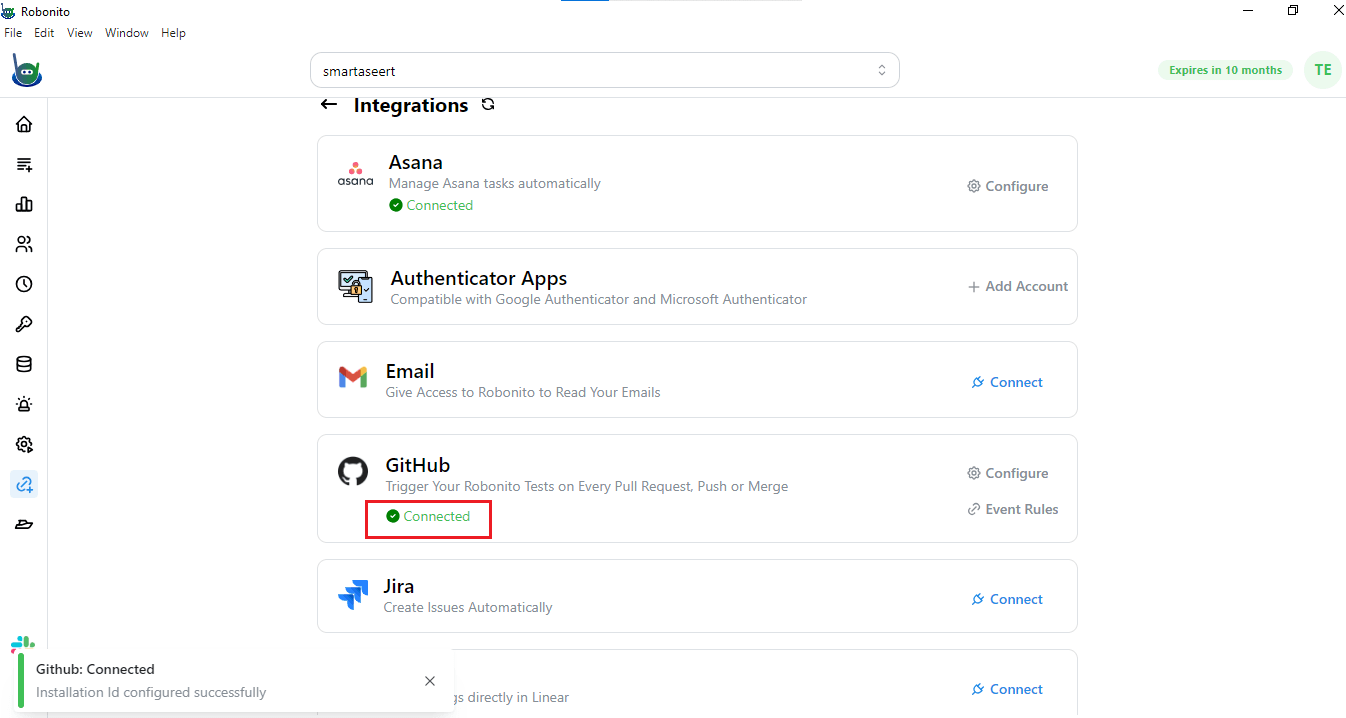
- You can verify this by opening the Integrations page again.
- You will now see a green connected icon under the GitHub section, confirming that the integration is active.
Get Started with Robonito Today
Connect your GitHub account with Robonito and start managing your projects in one place. Install the integration, add your installation ID, and you are ready to use GitHub directly inside Robonito. Try it now and see how easy it is to keep everything organized.