How to Integrate Your Gmail Account with Robonito: Step-by-Step Guide
Managing emails and tasks in different apps can take a lot of time. You go back and forth between Gmail and Robonito, and it can feel confusing. Connecting Gma...
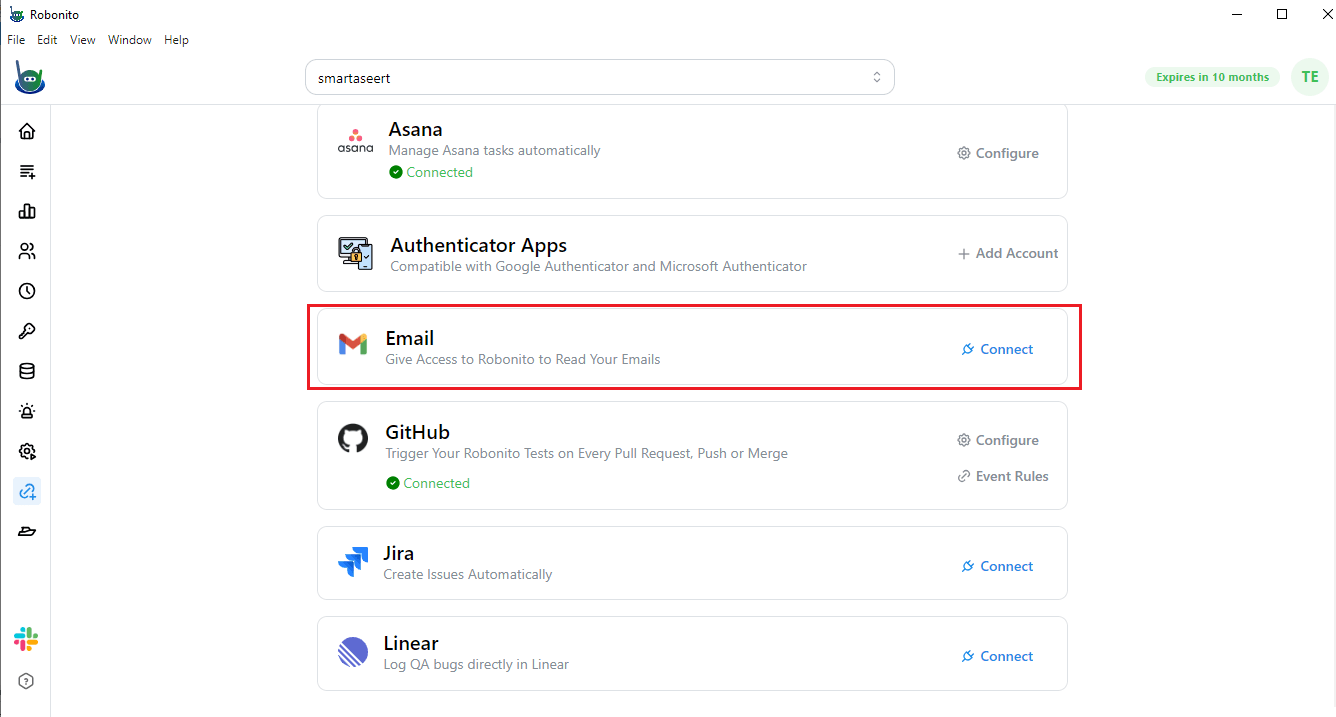
Introduction
Managing emails and tasks in different apps can take a lot of time. You go back and forth between Gmail and Robonito, and it can feel confusing. Connecting Gmail with Robonito helps a lot.
Once you link them, you can see your emails and notifications right inside Robonito. You can read messages, check updates, and take care of tasks all in one place. Everything is together, so staying organized is simple. This connection also keeps you updated with important emails. Your Robonito workspace will always show what is new in Gmail. You do not have to worry about forgetting tasks or notifications.
In this tutorial, we will show you how to connect Gmail with Robonito.
How to Connect Gmail with Robonito
Follow these steps to link your Gmail account with Robonito. Each step is explained clearly so it is easy to follow.
Step 1: Log in and open Integrations
- First, log in to your Robonito account using your usual username and password.
- On the left-hand menu, click Integrations.
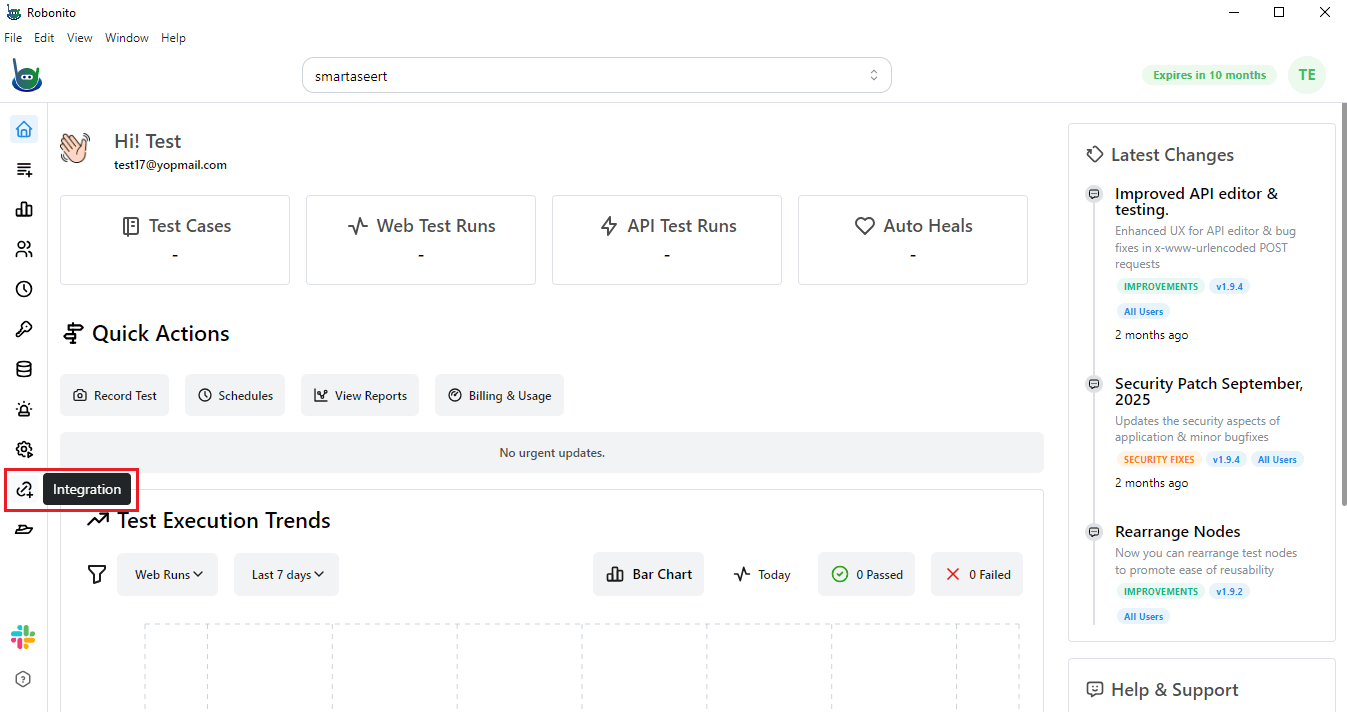
This will take you to a page listing all the tools that can be connected with Robonito.
Step 2: Find Gmail and start connecting
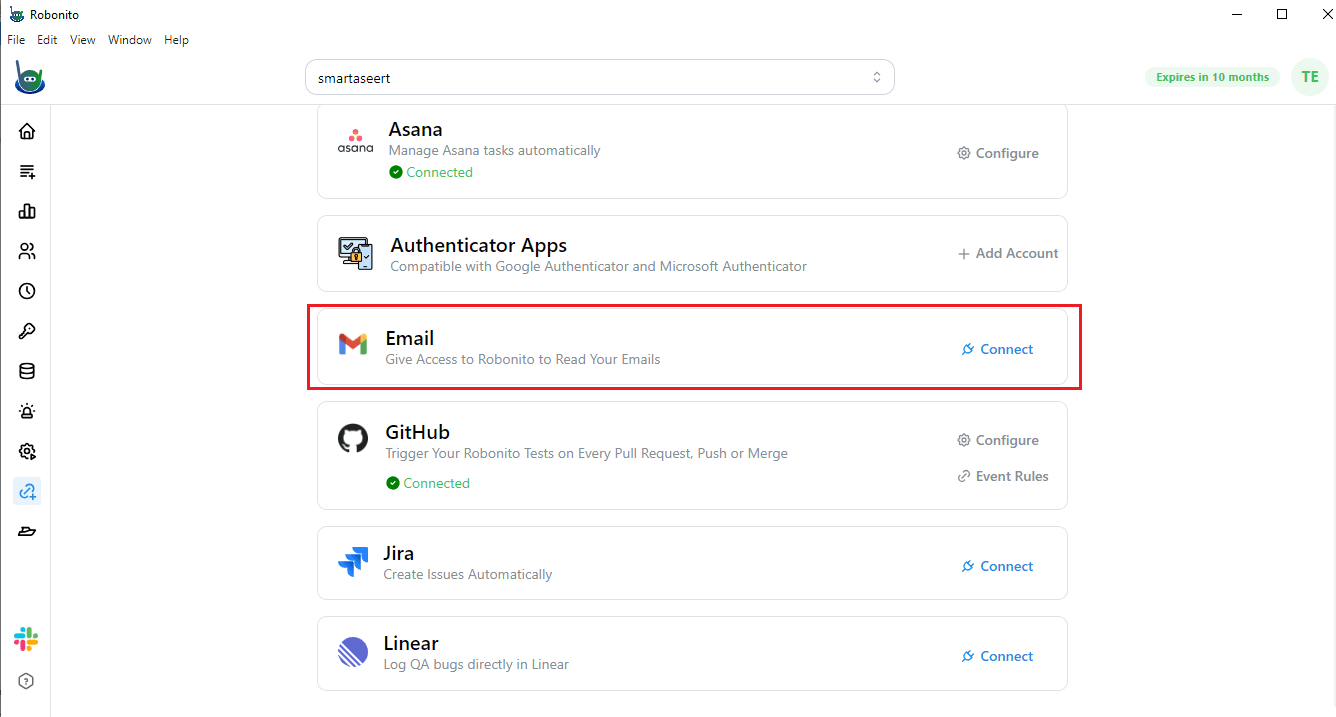
- Look for Gmail in the list of tools.
- Click the Connect button next to it. This starts the linking process.
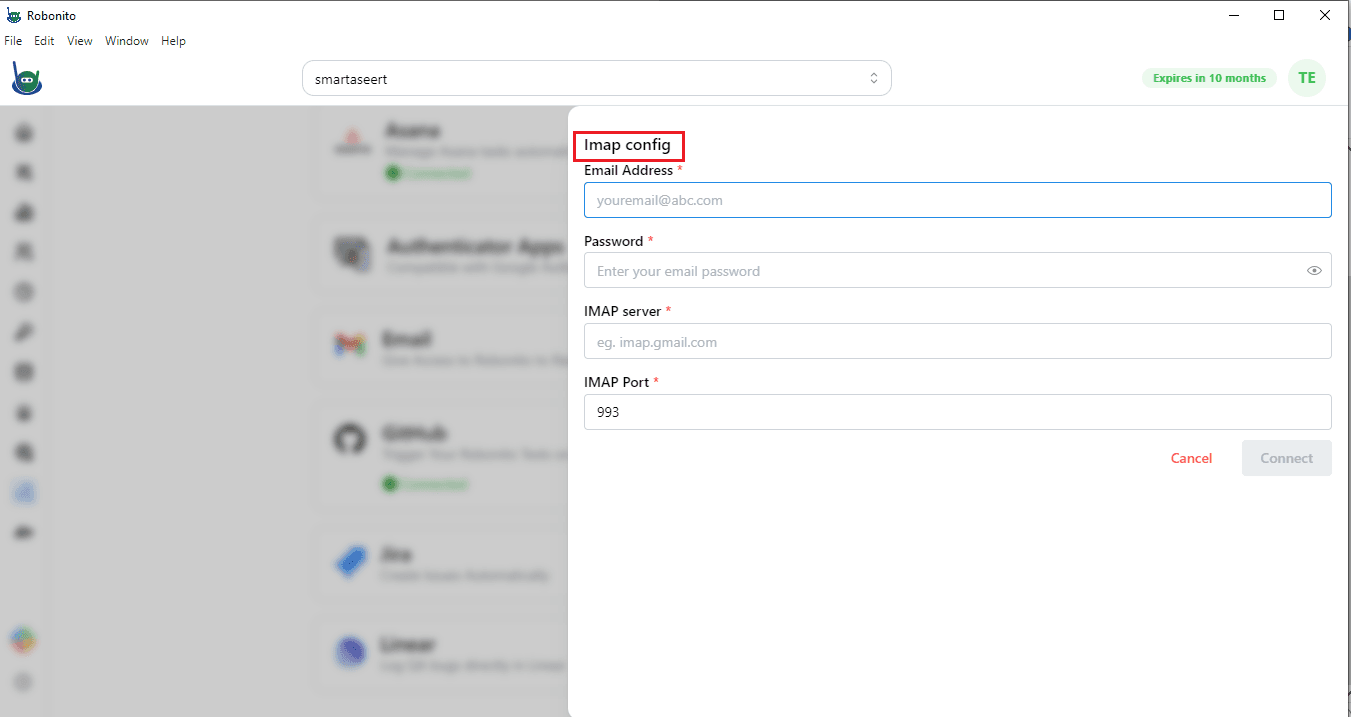
Step 3: Open IMAP configuration
- A console will open asking for IMAP settings.
IMAP details are needed because they let Robonito access your Gmail securely. This is how Robonito can show your emails and notifications inside the app without you manually checking Gmail every time.
Step 4: Get your IMAP details from Gmail
- Open your Gmail account in a browser.
- Go to Settings > See all settings > Forwarding and POP/IMAP.
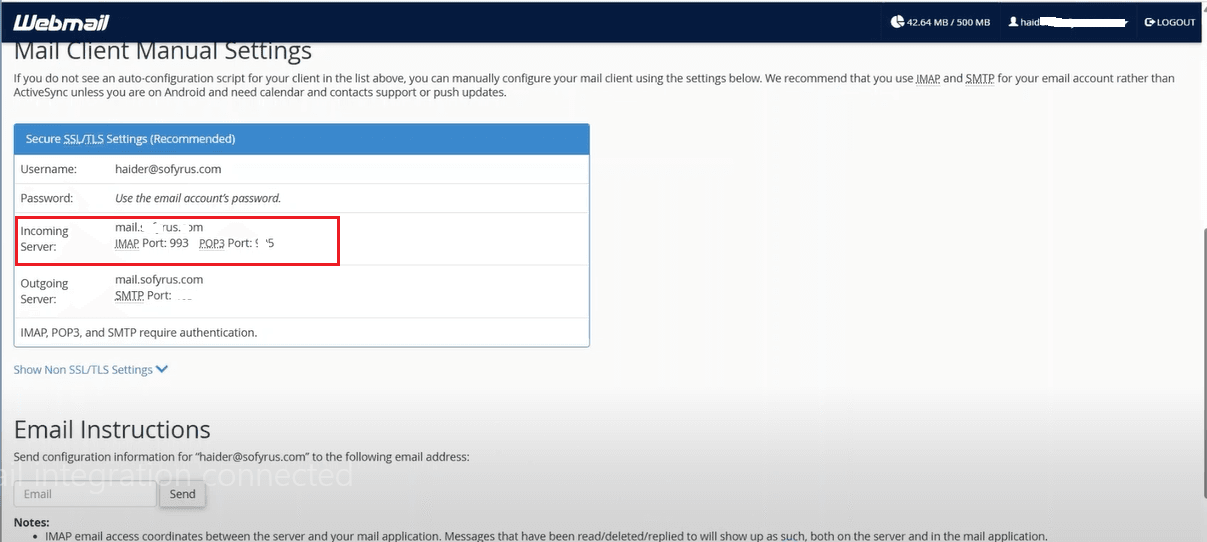
- Find Configure mail client and click it.
- You will see your IMAP server and port number. Copy both.
- These details tell Robonito exactly where to find your Gmail and how to connect safely.
Step 5: Enter the IMAP details in Robonito
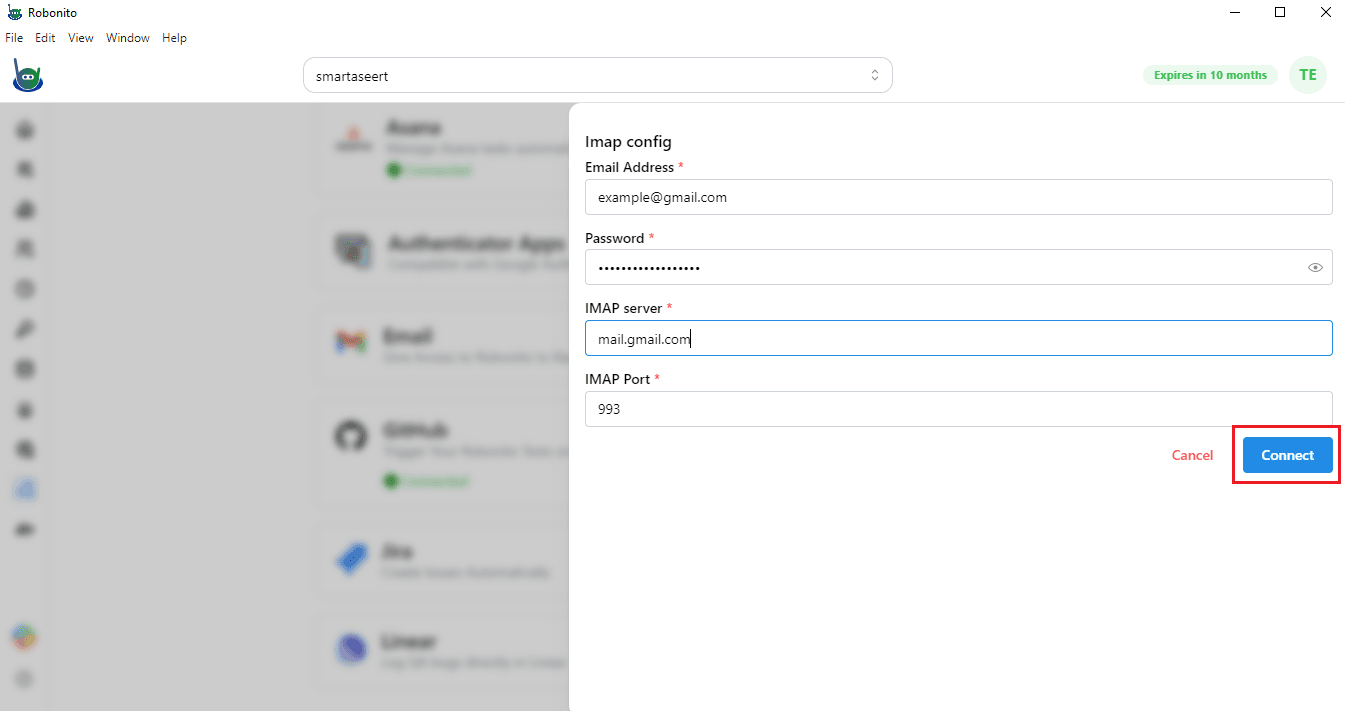
- Go back to the Robonito IMAP console.
- Enter your Gmail email address and password.
- Paste the IMAP server and port number you copied.
- Click Connect to finish.
Step 6: Done! Gmail is now linked
- Your Gmail is now connected to Robonito.
- You can see emails, notifications, and manage tasks in one place.
- Using IMAP keeps your connection secure and up to date, so nothing is missed.