The release passed every check on the Pixel emulator and the iPhone simulator. Then the first reviews arrived.
On one user's phone, the "Confirm transfer" button was cut in half because they use the largest text size. On another, the bottom tab bar sat under Android's navigation bar. Neither bug was in the code paths the tests covered; both were in the UI.
Mobile UI testing is about those bugs: what the user actually sees and touches, on the screens and settings they actually use.
Mobile UI testing checks that a native app's screens look right and respond correctly on real iOS and Android devices. Test screen sizes and notches, orientation, dark mode, large text, gestures, the keyboard, permission dialogs, interruptions, OS versions and right-to-left languages. Use emulators for speed, and real devices before release.
Key takeaways
- UI bugs hide in device settings: text size, dark mode, language, orientation and gesture navigation.
- Android 15 draws apps edge to edge once they target SDK 35, so check every screen for content under the system bars.
- Emulators and simulators are good for fast feedback; real devices catch hardware, performance and manufacturer-specific behaviour.
- Find elements by meaning or accessible label, or use self-healing, so layout changes don't break the suite.
What is mobile UI testing?
Mobile UI testing checks the user interface of an installed iOS or Android app. It asks whether each screen renders correctly, whether controls respond to taps and gestures, and whether the app adapts to the device's size, settings and system dialogs.
It overlaps with functional testing but has a different focus. A functional test asks "did the transfer go through?" A UI test also asks "could the user see and tap the button, in dark mode, at the largest text size, in Arabic?"
To automate these checks without code, see our guide to automating mobile app testing without code. For UI testing in general, including web, see what UI testing is.
What should you test in a mobile app's UI?
Use this table as the map. Each area has its own section below.
| Area | What to check | Why it breaks |
|---|---|---|
| Screen sizes and cutouts | Small and large phones, tablets, foldables, notches and punch-holes | Fixed sizes and positions, missing insets |
| Orientation | Portrait and landscape, rotation mid-task | State lost on rotation, layouts built for one shape |
| Dark mode | Every screen in light and dark appearance | Hard-coded colours, images without dark variants |
| Text size and accessibility | Largest text settings, screen readers, touch target sizes | Fixed-height containers, unlabelled icons |
| Gestures | Swipe, long press, pinch, pull to refresh, system back gesture | Conflicts with system gestures, no tap alternative |
| Keyboard | Field focus, keyboard type, keyboard covering content | Layouts that don't resize when the keyboard opens |
| Permissions | Allow, deny, "ask next time", revoked later in Settings | Only the "allow" path was tested |
| Interruptions | Calls, notifications, backgrounding, low battery, lock screen | State not saved when the app pauses |
| OS versions | Minimum supported, current and beta versions | Behaviour changes between releases |
| Localisation and RTL | Long translations, right-to-left layout, dates and numbers | Hard-coded strings, layouts that don't mirror |
How do you test screen sizes, notches and orientation?
Pick devices that stretch your layout: the smallest phone you support, a large phone, a tablet if you support one, and a foldable if your users have them.
- Cutouts and system bars. Android's edge-to-edge guide says apps that target SDK 35 or higher are displayed edge to edge on Android 15 and later. If your app doesn't handle insets, parts of it may be hidden under the status bar, navigation bar or display cutout.
- Gesture and button navigation. On Android, test with both gesture navigation and three-button navigation. The system reserves gesture areas at the screen edges, which can clash with your own swipes.
- Orientation. Rotate mid-task: halfway through a form, with a dialog open, during a video. The screen should keep the user's input and scroll position.
How do you test dark mode and large text?
Both are system settings that users turn on and forget.
Dark mode. Open every screen in light and dark appearance. Look for black text on dark backgrounds, logos that disappear, and images or charts with white boxes around them. Apple's accessibility guidance asks you to check minimum contrast in both appearances if you support Dark Mode.
Large text. Apple's guidelines say to let people enlarge text by at least 200 percent where possible, for example with Dynamic Type. Android's Android 14 notes say the system supports font scaling up to 200%, and recommend UI testing at the maximum font size.
At the largest sizes, look for:
- labels cut off or overlapping;
- buttons whose text wraps out of a fixed-height container;
- tab bars and toolbars that no longer fit;
- screens that need scrolling but can't scroll.
How do you test mobile accessibility in the UI?
Check accessibility on real devices, with the assistive features turned on.
- Screen readers. Walk through your core journeys with VoiceOver on iOS and TalkBack on Android. Every control needs a clear label, and focus should move in a logical order.
- Touch targets. Apple's guidelines list 44x44 pt as the default control size on iOS, with 28x28 pt as the minimum. Android's accessibility guidance recommends touch targets of at least 48dp by 48dp.
- Reduced motion. With Reduce Motion on, automatic and repeating animations should be reduced or replaced with fades, as Apple's guidelines describe.
How do you test gestures and the on-screen keyboard?
Gestures are where mobile UI differs most from web. Test each one on a real touchscreen at least once.
- Swipes and long presses. Check swipe to delete, carousels, long-press menus and drag to reorder. Each should have a visible alternative, as Apple's guidelines recommend.
- System back. On Android, the back gesture or button should go back one step, close dialogs and never lose unsaved input without warning.
- Keyboard type. Email, phone, number and one-time-code fields should open the matching keyboard.
- Keyboard covering content. When the keyboard opens, the active field and the main button should stay visible. Test the last field on long forms.
How do you test permission dialogs and interruptions?
System dialogs and interruptions appear on top of your app, at times your test doesn't control.
Permissions. For each permission your app requests, such as camera, location, photos, contacts and notifications, test allow, deny and the path where the user changes their mind later in Settings. On Android 13 and higher, notifications need the POST_NOTIFICATIONS runtime permission, and newly installed apps have notifications off by default. Android's docs include adb commands for resetting this state between tests.
Interruptions. Test what happens when:
- a phone call or alarm arrives mid-task;
- a notification banner covers the top of the screen;
- the user switches to another app and returns minutes later;
- the device locks and unlocks.
The app should come back to the same screen with the user's input intact, or explain clearly why it can't.
How do you test across iOS and Android versions?
Each major OS release changes something in the UI: system bars, permission prompts, keyboard behaviour, default fonts.
- Cover a range. Test your minimum supported version, the current version, and the versions most of your users run, based on your own analytics.
- Test betas. Run your core UI checks on the iOS and Android betas before they ship, so you find changes before your users do.
- Watch target SDK changes on Android. Some behaviour changes, like edge-to-edge, apply only when you raise your target SDK. Retest every screen when you bump it.
- Include manufacturer skins. Android phones from different makers can change fonts, dialogs and navigation. Include at least one non-Pixel device.
How do you test localisation and right-to-left layouts?
Translations break layouts in predictable ways: longer words, different scripts and mirrored direction.
Android's pseudolocales make this easy to test before translation. English (XA) adds accents and lengthens text to expose truncation and hard-coded strings. AR (XB) switches text to right-to-left, so you can spot elements that don't mirror. Both are enabled in debug builds and selected in the device's language settings.
Then check with real translations:
- long languages such as German, for truncated buttons;
- a right-to-left language such as Arabic or Hebrew, for mirrored layouts, icons and swipe directions;
- dates, times, currencies and number formats in each locale.
Should you test on emulators, simulators or real devices?
Use both. Each answers a different question.
| Emulators and simulators | Real devices | |
|---|---|---|
| Best for | Fast feedback while building, many OS versions, CI on every commit | Release checks, hardware, performance and manufacturer behaviour |
| Strengths | Quick to start, easy to reset, cheap to run in parallel | Real touch, camera, sensors, biometrics, networks and thermals |
| Gaps | Can't fully reproduce real hardware, performance or every manufacturer's changes | Cost, maintenance and availability if you run your own lab |
| Typical use | Per-commit UI smoke tests | Pre-release regression on the devices your users have |
Android's emulator docs say the emulator provides almost all the capabilities of a real device, including simulated calls, location, network speeds and rotation. "Almost all" is the point: release decisions should rest on real hardware.
Which mobile UI testing tools should you use?
Facts below come from each project's or vendor's own site, as of November 2026.
- Espresso. Google's Android UI testing framework, in Kotlin or Java. Its docs say it waits for the UI to be at rest before acting, and that its full power is for those familiar with the codebase. Android only.
- XCUITest. Apple's UI testing in Xcode, built on XCTest and Accessibility, with tests in Swift or Objective-C. iOS only, and it needs a Mac.
- Appium. An open-source project for mobile, web and desktop UI automation, with clients in JavaScript, Java, Python, Ruby and .NET. The UiAutomator2 driver covers native, hybrid and mobile web apps on Android; the XCUITest driver covers native, hybrid and WebKit web apps on iOS. Both run on emulators or simulators and real devices.
- Maestro. An open-source framework where UI tests are written as YAML flows. The CLI runs flows on a local iOS simulator or Android emulator, and Maestro Cloud adds hosted runs.
- Detox. A gray box end-to-end framework for React Native apps, with tests in JavaScript. It supports iOS and Android, but its site notes that testing on a device isn't yet supported on iOS.
| Tool | Who writes tests | Platforms | Real devices |
|---|---|---|---|
| Espresso | Android developers | Android | Yes |
| XCUITest | iOS developers | iOS | Yes |
| Appium | Developers, SDETs | Android, iOS (native, hybrid, mobile web), more via drivers | Yes |
| Maestro | Developers, technical QA | Android, iOS | Through your own setup or Maestro Cloud |
| Detox | React Native developers | Android, iOS | Not yet on iOS, per its site |
| Robonito | QA, product, manual testers | Android, iOS, web, API, desktop | Yes, real device farm (Pro and Enterprise) |
Which testing tool covers Chrome, Safari, iOS and Android in one suite?
The options fall into two groups.
- Code: Appium. Its drivers automate native apps and mobile browsers: Chrome on Android through UiAutomator2, and WebKit web apps on iOS through the XCUITest driver. Programmers write and maintain the tests, and you still need a separate setup for desktop browsers.
- Platforms. Katalon Studio covers web plus Android and iOS apps, including mobile web. testRigor runs plain-English tests on web and native and hybrid mobile apps. Robonito runs web tests on every plan and adds Android and iOS app testing on Pro and Enterprise, so web and mobile journeys can sit in one suite.
Before choosing, list your exact browsers, OS versions and devices, and ask each vendor to run one of your journeys on them.
How does self-healing help when mobile layouts shift?
Mobile layouts shift often: a redesign moves a tab, a new OS version changes a dialog, a translation lengthens a label. Tests tied to coordinates or deep element paths fail every time, even though the app still works.
Two habits reduce this. First, find elements by meaning, such as an accessibility label or visible text, rather than position. Second, use a tool that self-heals: when a locator stops matching, it finds the intended element and logs the change for a person to review. Our guide to self-healing test automation covers how it works and where it can hide real bugs.
Mobile UI testing checklist
Run this before each release, on at least one real iPhone and one real Android phone:
- Every core screen renders correctly on your smallest and largest supported phones.
- Nothing sits under the status bar, navigation bar, notch or home indicator.
- Rotation mid-task keeps input and scroll position.
- Every screen works in light and dark mode, with readable contrast.
- At the largest text size, labels and buttons aren't clipped and screens still scroll.
- VoiceOver and TalkBack can complete the core journeys, and every control has a label.
- Touch targets are 44x44 pt on iOS (never below 28x28 pt) and at least 48x48dp on Android.
- Each gesture works and has a visible alternative.
- The keyboard opens the right type and never hides the active field.
- Allow, deny and later-revoked paths work for each permission.
- Calls, notifications, backgrounding and locking don't lose the user's place.
- Your minimum, current and beta OS versions pass the core UI checks.
- Pseudolocales and one right-to-left language show no truncation or unmirrored elements.
Mobile UI testing with Robonito
Robonito is an agentic QA platform: AI agents create, run and maintain end-to-end tests. Mobile app testing for Android and iOS is on the Pro and Enterprise plans, and runs can use Robonito's real device farm, so you don't have to buy and maintain your own device lab.
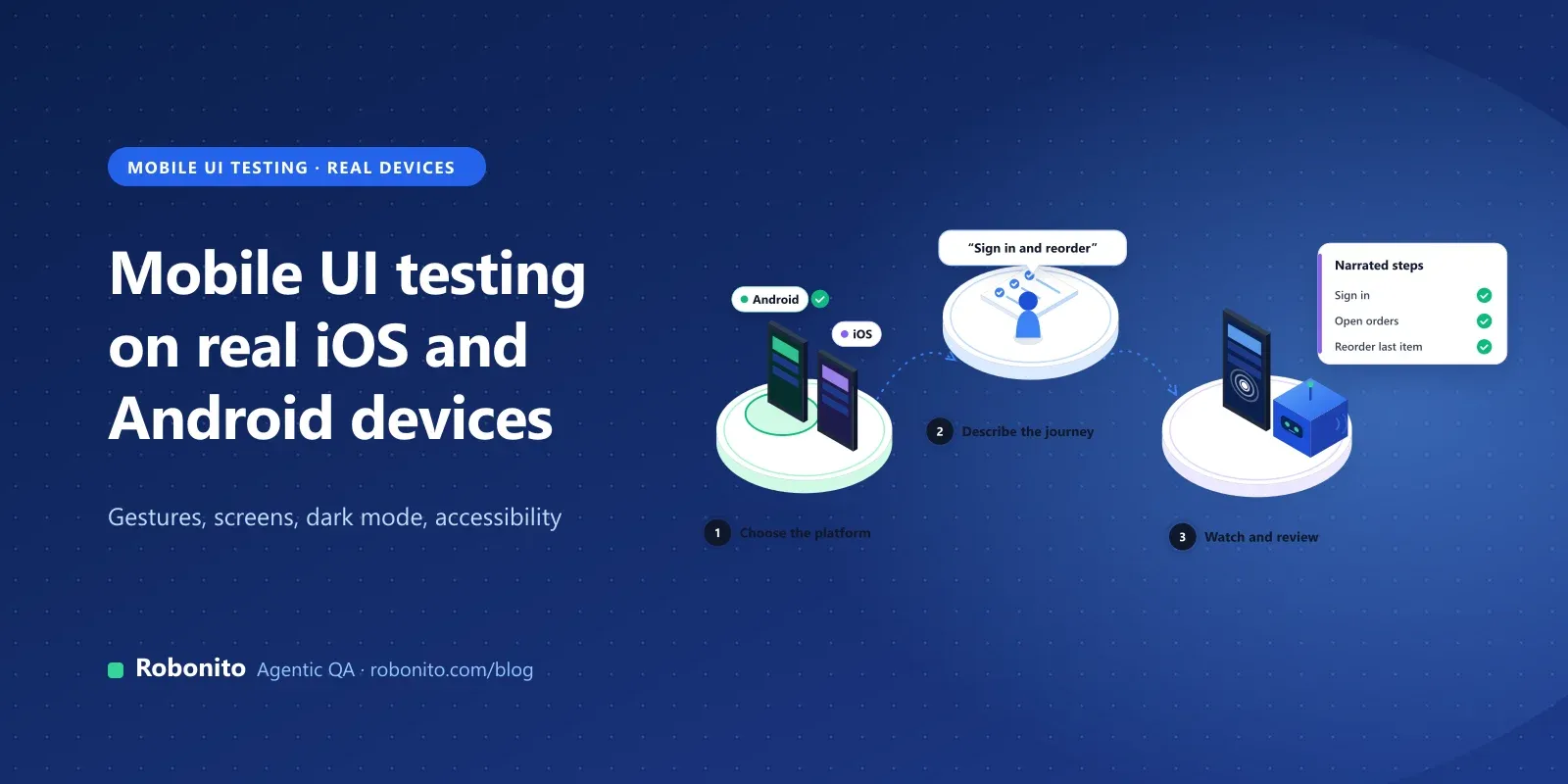
- Plain-language tests. In AI Studio, describe a journey ("open settings, switch to dark mode, check the balance screen") or reference a Jira issue, and the agent works through the app step by step.
- Self-healing. When labels, layouts or locators change, steps adapt instead of failing, and each healed step is logged for review.
- Evidence. Every run keeps video, network traces and an AI root cause for failures, plus pass rates, trends and risk analysis across runs.
- CI and tracking. Trigger runs from Jenkins, GitHub Actions, GitLab CI, Azure DevOps or CircleCI, and send results to Jira and Slack.
- One suite. Web on every plan, with mobile, desktop and API testing on Pro.
Pricing. Pro is $199 a month ($159.20 billed annually) with $250 of cloud usage, 10 parallel runs and unlimited test cases. Beyond the included usage, mobile runs cost $0.03 a minute. Enterprise is custom. See pricing.
Where it doesn't fit. Mobile testing isn't on the Free or Starter plans, so you can only try Robonito free on web. If your developers want UI tests in the app repository, written in Kotlin or Swift and run with every local build, Espresso and XCUITest are better for that layer. And if you need specific device models or OS versions, bring the list to a demo and check it against the device farm before you commit.
with one of your mobile journeys, or on your web app first.
Frequently asked questions
What is mobile UI testing?
Mobile UI testing checks that a native iOS or Android app's screens display correctly and respond to taps, gestures and typing as expected. It covers different screen sizes, orientation, dark mode, large text, accessibility features, permission dialogs, interruptions, OS versions and languages. It can be manual, automated or both, and should include real devices before release.
Is testing on emulators enough for mobile UI testing?
Not on its own. Emulators and simulators are fast, cheap and good for checking UI on every commit across many OS versions. Android's own docs say the emulator provides almost all of a real device's capabilities, which leaves gaps: real hardware, performance, camera, sensors and manufacturer changes. Run your release checks on real devices your users actually have.
Which tools are used for mobile UI testing?
Common code frameworks are Espresso for Android, XCUITest for iOS, Appium for both, Maestro with YAML flows, and Detox for React Native. No-code and AI platforms, such as testRigor, Katalon and Robonito, let testers build UI tests without writing framework code. The right choice depends on who writes the tests and which platforms you cover.
Which testing tool covers Chrome, Safari, iOS and Android in one suite?
Appium can, with code: its UiAutomator2 driver automates Android apps and Chrome, and its XCUITest driver automates iOS apps and WebKit web apps. Platforms such as Katalon and testRigor cover web and mobile too. Robonito runs web tests on every plan and Android and iOS app tests on Pro and Enterprise, so both live in one suite.
How do you test dark mode and large text on mobile?
Switch the device to dark appearance and walk every screen, looking for unreadable text, missing icons and images with white boxes. Then set the largest text size: Android 14 supports up to 200%, and Apple recommends supporting at least 200% enlargement. Check that labels aren't clipped, buttons still fit and screens can scroll.
How do you stop mobile UI tests breaking when the layout changes?
Find elements by accessibility label or visible text instead of screen position or deep element paths. Keep tests focused on what the user does, not where things sit. Self-healing tools can also find the intended element when a locator stops matching, and log each change for review, so a redesign doesn't turn the whole suite red.
Ship UI that works on the phones your users actually hold. to run one of your journeys on real Android and iOS devices, or .